
Model HQ
DocumentationGetting Started with Code on Model HQ
This guide walks you through the initial steps to launch and configure the backend inference server in Model HQ, enabling seamless programmatic access to over 40+ APIs through the Model HQ SDK.
1. Launching the Tools Interface
To begin, navigate to the main menu at the top-right corner of the interface and click on the Tools button (🔧).
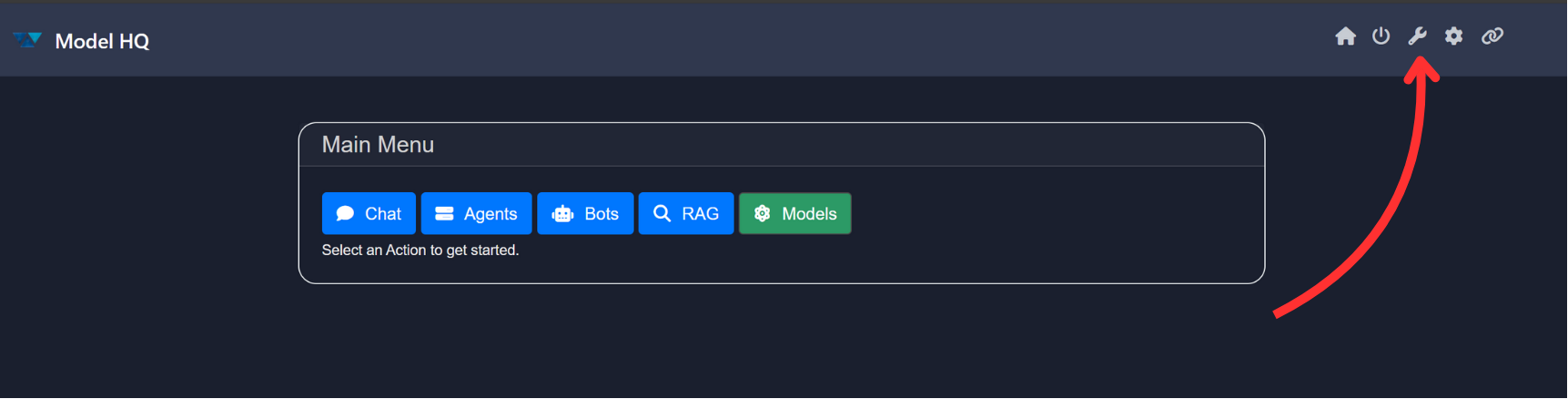
The tools page should look like this:
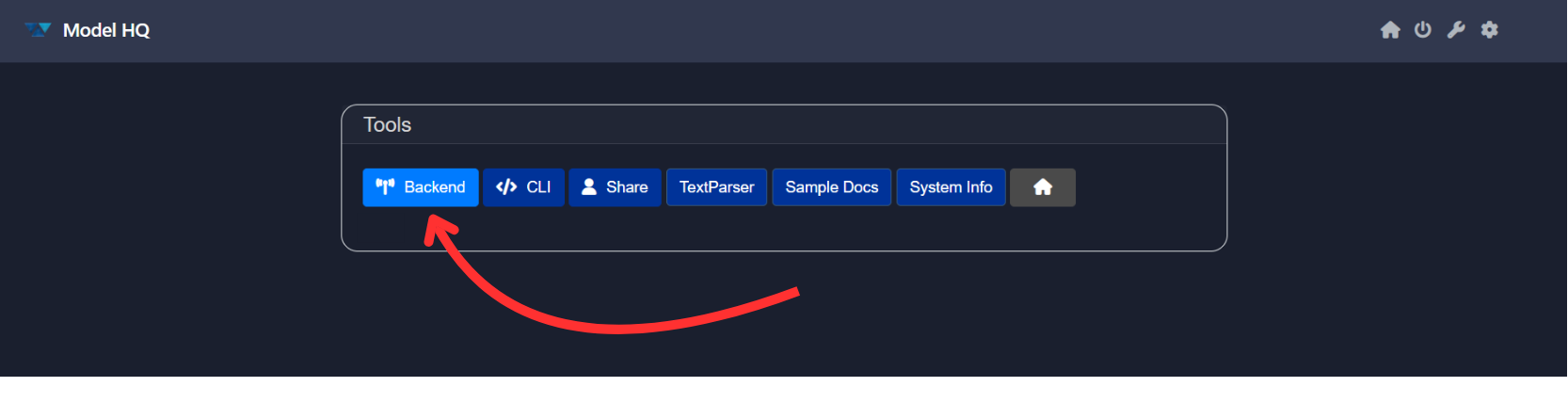
2. Launching the Backend Server
Select the Backend option from the tools interface. This initiates the backend API server in a headless mode, shutting down the user interface and enabling direct access via APIs.
This is ideal for lightweight, modular deployment scenarios. Once launched, the server runs as a background service and can be accessed either via localhost or over an external IP address—enabling private, local inference workflows.
You will be provided with a download link for the Model HQ SDK, which contains all the necessary libraries, sample code, and examples to get started. Simply unzip the SDK package, open your preferred IDE, and start coding with direct access to the backend APIs.
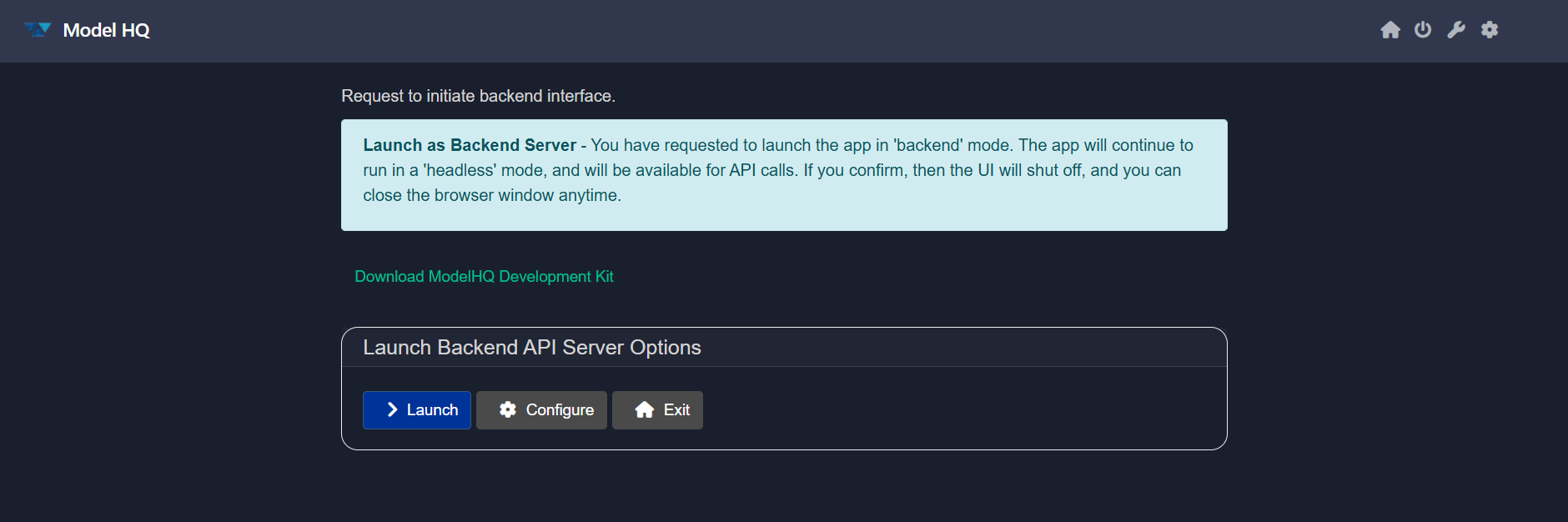
The backend interface includes two main options:
- Launch: Starts the backend server immediately.
- Configure: Opens the configuration settings before starting the server.
Launch Backend Inference Server Guide
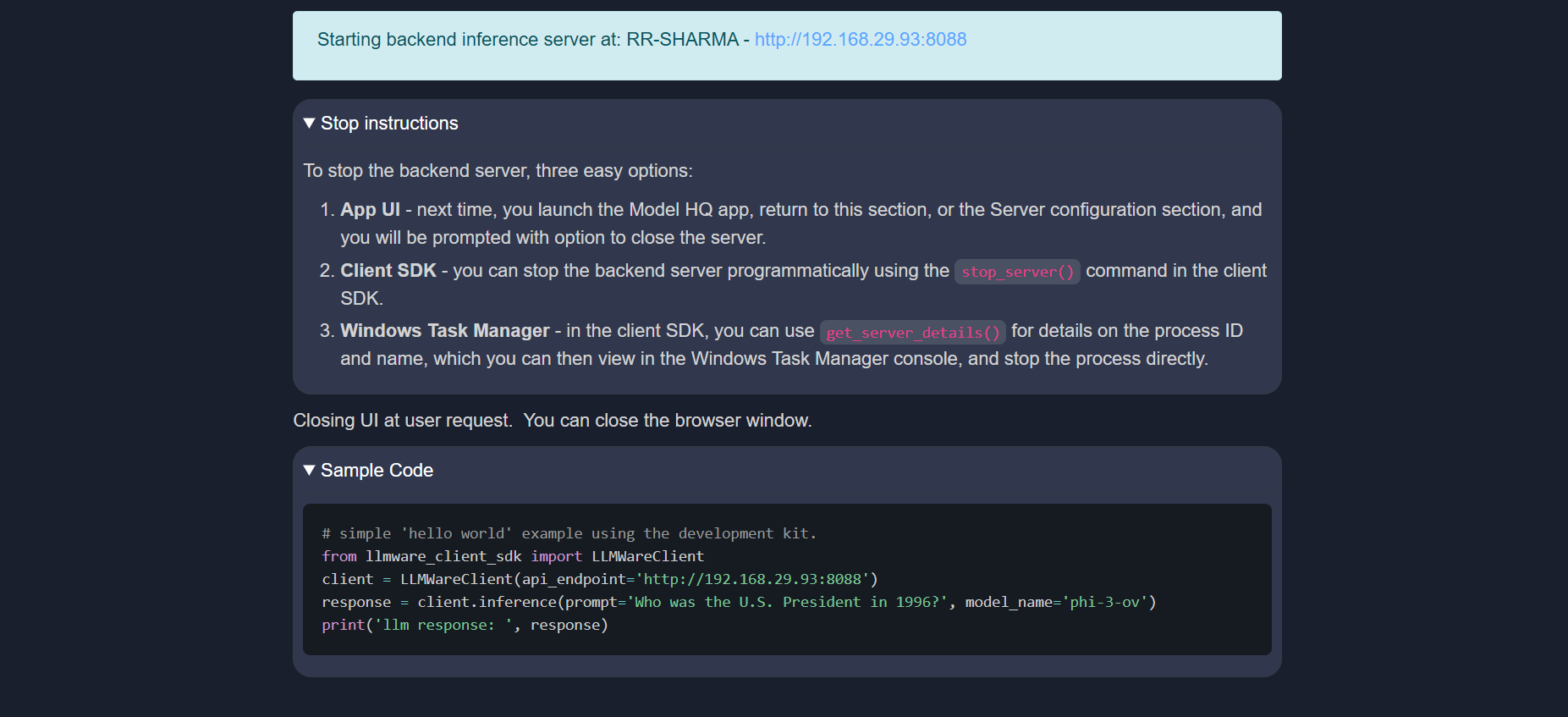
Starting the Server
To start the backend inference server, simply click Launch or use the CLI tools provided in the SDK. Once launched, the server is accessible at:
Server URL: http://192.168.29.93:8088Stopping the Server
You can stop the backend server using any of the following methods:
- From the Model HQ UI
- Open the Model HQ application.
- Navigate to Server Configuration.
- Use the provided control to shut down the server gracefully.
- Using the Client SDK
- Invoke the
stop_server()method from the SDK to terminate the server programmatically.
- Invoke the
- Via Windows Task Manager
- Use the SDK’s
get_server_details()to retrieve the process ID. - Open Task Manager and manually stop the corresponding process.
- Use the SDK’s
Sample Code: Hello World
Below is a basic example demonstrating how to make an inference call to the backend server using the SDK:
from modelhq.client import LLMWareClient

client = LLMWareClient(api_endpoint="http://192.168.29.93:8088", api_key="")
response = client.inference(prompt="Who was the U.S. President in 1996?", model_name="phi-3-ov")
print("llm response:", response)
Configure or Configure Backend API Sever for 'Headless' Mode
Before launching the backend in headless mode, you may choose to configure the server using the Configure option. Below are the available settings:
Host Type
- Localhost: Restricts access to the local machine only.
- External IP: Allows access from other devices on the network.
IP Address
- Default:
127.0.0.1 - Example:
192.168.29.93
Port
- Default:
8088 - This can be modified as needed to avoid port conflicts.
Worker Threads
- Default:
4 - Recommended for lightweight concurrency; adjust only if needed for performance tuning.
Trusted Key (Optional)
- Enable Key Requirement: All API calls must include a trusted key.
- No Key Required: Skip key-based authentication.
Save your changes by clicking on > button.
Downloading the Model HQ SDK
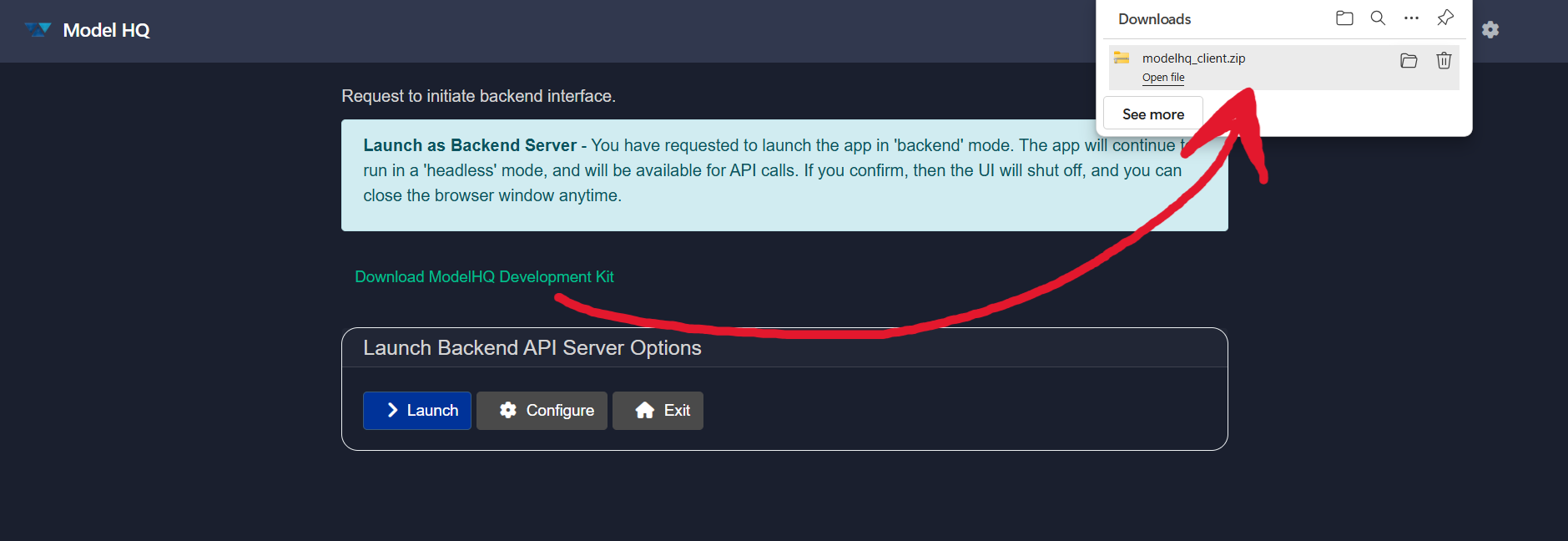
Clicking on the Download Model HQ Development Kit button will download a .zip file. Once extracted, the SDK is organized as a Python package:
modelhq/
├── modelhq/
│   ├── client/
│   │   ├── __init__.py
│   │   ├── sdk.py              # LLMWareClient class
│   │   ├── api_service_catalog.py
│   │   └── requirements.txt
│   ├── examples/
│   ├── sample_files/
│   ├── tests/
│   └── README.txt
Refer to README.txt for detailed usage instructions.
Making the SDK importable
The SDK is a local Python package rather than an installed library. After extracting the download, one of the following approaches should be used so Python can find the modelhq module:
| Option | Command |
|---|---|
| Run from the parent directory | cd path\to\modelhq then run Python |
Set PYTHONPATH (per session) | $env:PYTHONPATH = "path\to\modelhq" (PowerShell) |
| Install as an editable package (once) | pip install -e path\to\modelhq |
Option
Run from the parent directory
Command
cd path\to\modelhq then run Python
Option
Set PYTHONPATH (per session)
Command
$env:PYTHONPATH = "path\to\modelhq" (PowerShell)
Option
Install as an editable package (once)
Command
pip install -e path\to\modelhq
Once this is done you can import the client in any Python script:
from modelhq.client import LLMWareClient

client = LLMWareClient(api_endpoint="http://127.0.0.1:8088", api_key="")
Closing Backend Server
- Close the Model HQ UI.
- Open the Model HQ again.
- Go to tools > backend.
- You will be asked to "Would you like to stop current server?". Click on
Yes.
Next steps
| Topic | Document |
|---|---|
| First inference and streaming | Hello World |
| Chat with app sessions | Chat |
| Run pre-built agents | Agents |
| Build knowledge bases and ask questions | RAG |
| Image analysis, generation, and speech | Vision & Media |
| SDK method reference | SDK Reference |
| Full endpoint specifications | API Reference |
| Linux server deployment | Server Deployment |
Topic
First inference and streaming
Document
Topic
Chat with app sessions
Document
Topic
Run pre-built agents
Document
Topic
Build knowledge bases and ask questions
Document
Topic
Image analysis, generation, and speech
Document
Topic
SDK method reference
Document
Topic
Full endpoint specifications
Document
Topic
Linux server deployment
Document
Conclusion
You’re now ready to begin building applications using the Model HQ backend inference server. For more advanced topics, refer to the API Reference Guide
For further assistance or to share feedback, please contact us at support@aibloks.com