
Model HQ
DocumentationBuilding/Editing Agents with Visual Builder
The Visual Builder lets you create agents using a drag-and-drop interface. Instead of working step-by-step in text, you can place and connect nodes on a canvas to define how your workflow runs.
Each node represents a task — such as document parsing, RAG question answering, data extraction, or running a model. You can easily configure each step using simple forms, set inputs, and control what outputs are passed to the next step.
The Visual Builder makes it easy to see how everything is connected and how data moves through your workflow. You can rearrange steps, zoom in and out, and quickly adjust connections as needed.
Once your workflow is ready, you can run it directly, export it, or switch to the step-based editor for further edits.
The Visual Builder excels at creating complex workflows with branching logic, conditional execution, and parallel processing paths, as these structures are more easily understood and modified in graphical form. The interface includes features for zooming, panning, rearranging nodes, and validating connections to ensure data flows correctly between steps. Once the visual workflow is complete, it can be executed directly from the builder, exported as a JSON configuration file, or further refined using the step-based editor.

Build and Deploy AI Agents in Minutes on AI PCs - No Code Needed

Build Live Demos for AI Agents | Model HQ Agent Demo Mode

2 On-Device Agent Demos on Snapdragon X Elite (RAG + Vision) | Model HQ + Microsoft Foundry Models

No-Code Sentiment & Emotion Detection Agent in Model HQ (On-Device + Private AI)

Private, Local Image Agents in Model HQ: Describe Images + Extract Numbers (Fast!)

Handwriting-Reading Agent with On-Device AI | Prescription Reading Agent (no code, private)
3.1 Builder overview
The canvas represents the full execution flow of an agent, from input to final output. Each block is a node, and connections define how data moves between steps.
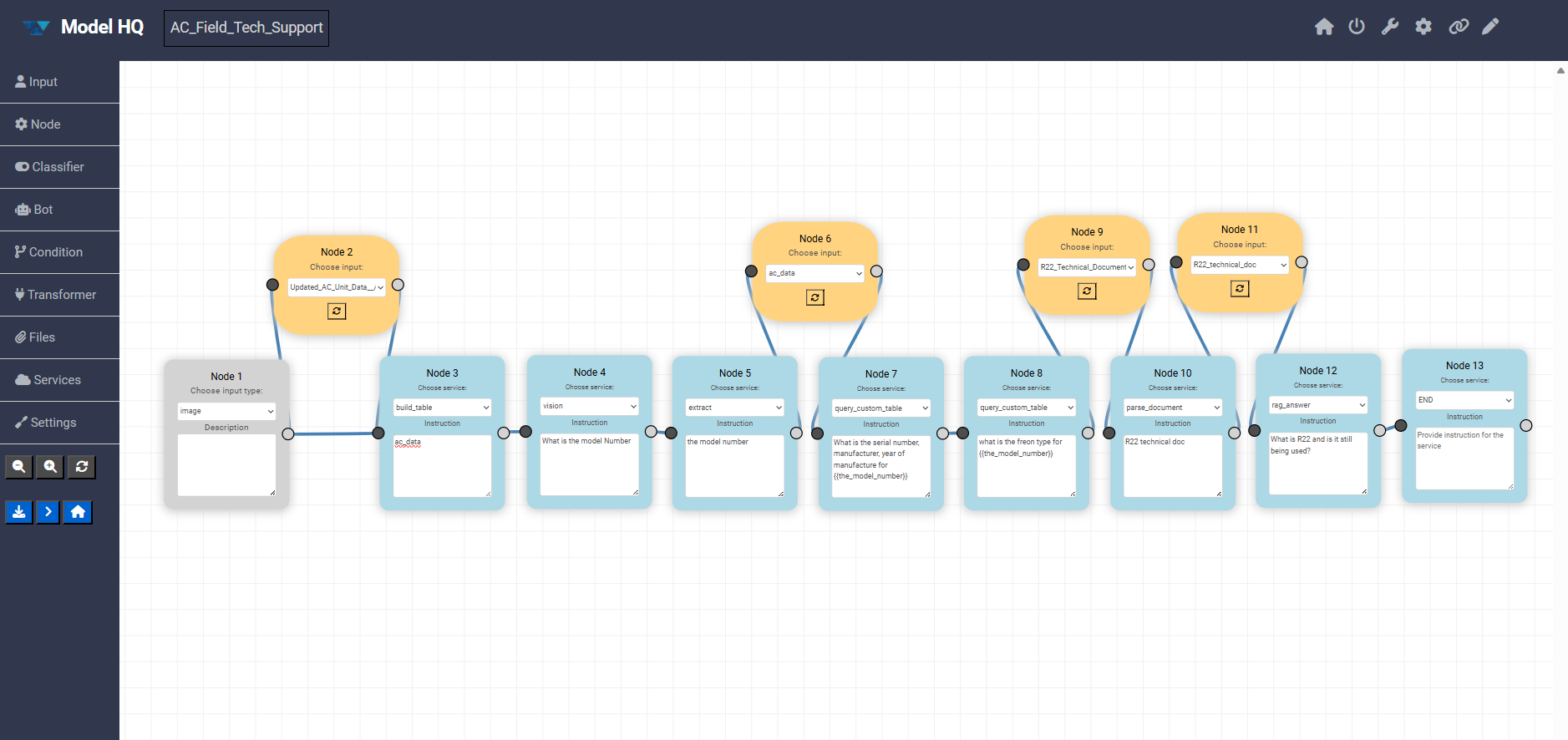
All components are fully visual and configurable directly in the builder.
3.2 Left panel (node types)
The left sidebar contains the core building blocks that can be dragged onto the canvas:
- Input Defines how data enters the agent (for example text, image, or file input).
- Node General-purpose processing steps that pass data forward.
- Classifier Routes execution based on intent or classification logic.
- Bot Allows user to include a Bot interface in the agent.
- Condition Adds branching logic based on rules or outputs.
- Transformer Allows user to specify which data to use in the agent process as it moves to the next step.
3.3 Agent Configurations:
- Files: This section is used to upload, manage, and associate data assets with the agent.
- Services: It serves as a service catalog for the agent. It determines which capabilities are available when building workflows.
- Settings: Allows to set Agent global configurations from selecting models to overall control in the agent.
3.4 Canvas controls
On the canvas, the following actions can be performed:
- Nodes can be dragged to reposition them
- Nodes can be connected to define execution flow
- Nodes can be selected to edit their instructions and configuration
- Note: The number of the node indicates the order in which the User added that node on the canvas, and does not indicate the order in which the services or the node will be activated. The order of agent execution follows the order of the nodes and how they are linked to each other, rather than the node number.
3.5 Zoom and utility actions
The bottom-left controls allow the following operations:
- Zoom in
- Zoom out
- Clear the canvas
3.6 Action buttons
Below the utility buttons, quick access to key actions is provided:
- Save Agent Saves the agent definition as a JSON file. This file can later be uploaded to instantly recreate the agent.
- Run Executes the agent with the current configuration.
- Home Returns to the main dashboard.
4. Input Node
The Input Node defines how data enters the agent workflow. It is typically the starting point on the canvas and determines the format and structure of the data that downstream nodes will receive.
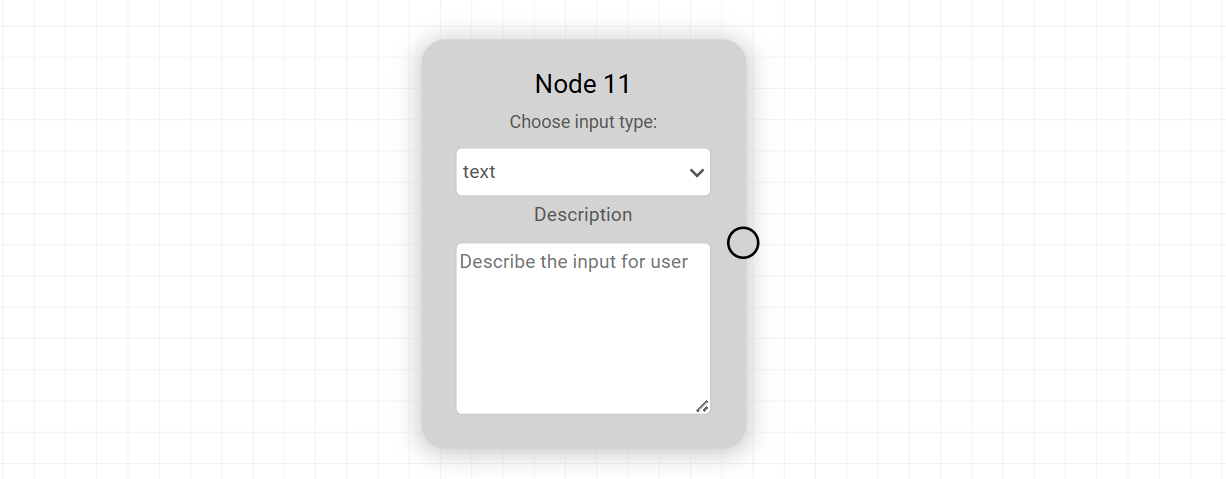
Each Input Node can be configured by selecting an input type and adding a short description to guide users on what to provide. This makes the agent easier to use and ensures consistent input formatting.
Available Input Types
| Input Type | Description |
|---|---|
| text | Accepts plain text input. Useful for prompts, queries, or instructions provided directly by the user. |
| document | Accepts uploaded documents such as PDFs, Word files, PPTx or similar formats for parsing or analysis. |
| dataset | Used for structured datasets, typically containing multiple records for batch processing or analytics. |
| table | Accepts tabular data with rows and columns, suitable for structured data operations. |
| image | Accepts image files for tasks like OCR, visual analysis, or classification. |
| source | Represents a reference input such as a URL, repository, or external data source. |
| collection | A grouped set of related items, often used for retrieval or search-based workflows. |
| snippet | Accepts smaller pieces of content, such as code snippets or short text blocks. |
| json | Accepts structured JSON input for precise schema-driven workflows. |
| form | Captures multiple fields of user input in a structured form format. |
| folder | Accepts a directory containing multiple files for bulk processing. |
Input Type
text
Description
Accepts plain text input. Useful for prompts, queries, or instructions provided directly by the user.
Input Type
document
Description
Accepts uploaded documents such as PDFs, Word files, PPTx or similar formats for parsing or analysis.
Input Type
dataset
Description
Used for structured datasets, typically containing multiple records for batch processing or analytics.
Input Type
table
Description
Accepts tabular data with rows and columns, suitable for structured data operations.
Input Type
image
Description
Accepts image files for tasks like OCR, visual analysis, or classification.
Input Type
source
Description
Represents a reference input such as a URL, repository, or external data source.
Input Type
collection
Description
A grouped set of related items, often used for retrieval or search-based workflows.
Input Type
snippet
Description
Accepts smaller pieces of content, such as code snippets or short text blocks.
Input Type
json
Description
Accepts structured JSON input for precise schema-driven workflows.
Input Type
form
Description
Captures multiple fields of user input in a structured form format.
Input Type
folder
Description
Accepts a directory containing multiple files for bulk processing.
Notes
- The selected input type directly impacts how downstream nodes interpret and process data.
- Clear descriptions improve usability, especially when agents are shared or reused.
5. Node
The Node represents a general-purpose processing step in the agent workflow. It is used to execute a specific service and pass the result forward to the next connected node.
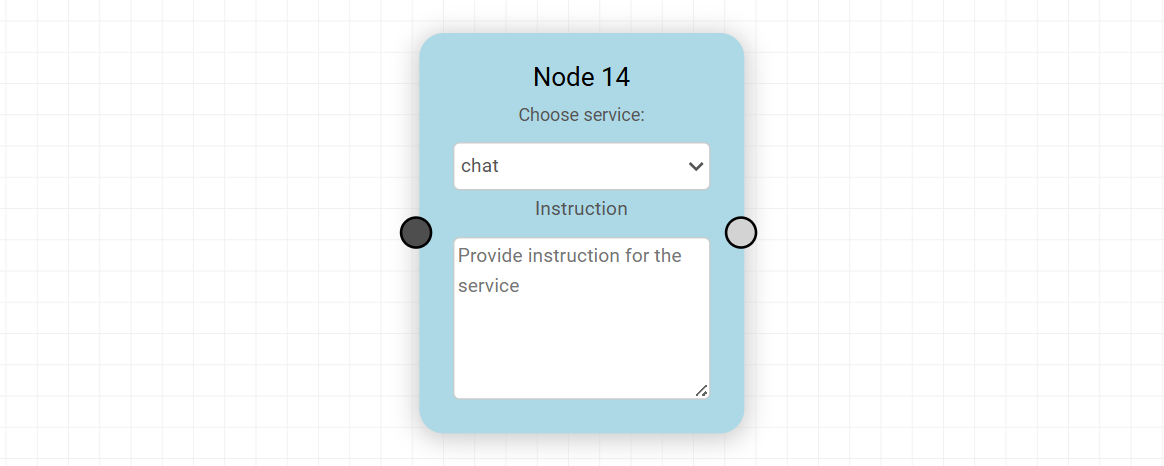
Each Node acts as a bridge between data and capability, allowing the agent to perform operations such as reasoning, transformation, retrieval, or external service interaction.
Service Selection
Every Node includes a “Choose service” dropdown. This list is dynamically populated from the Services section in the agent configuration.
- Only services that are added and enabled in the Services section will appear here
- This ensures that the Node operates within the capabilities explicitly defined for the agent
- Services can include model-based operations, data processing tools, integrations, or custom logic
Instruction Field
Each Node provides an Instruction field where you define how the selected service should behave.
- Instructions guide the execution of the service
- They can include prompts, rules, or task-specific directions
- Clear and precise instructions improve output quality and consistency
Custom Datasets as Services
In addition to predefined services, custom datasets can also be used within a Node:
- Datasets must first be configured in the main Datasets section [ROHAN: Add link here to Datasets]
- Once created, datasets must then be added as a file in the agent process in the Files section
- Once listed, the dataset and each of the columns specified in the Dataset creation become selectable in the transformer node
- To use dataset-related Agent workflow services, select All-Datasets in the Services catalog (left side nav in visual editor)
- This allows workflows to directly interact with structured or domain-specific data with dataset-related services
Key Characteristics
- Nodes process incoming data and produce outputs for downstream steps
- They can be chained to create multi-step workflows
- The behavior of a Node is fully determined by the selected service and its instruction
- Nodes are reusable and can be reconfigured without affecting the overall structure
Notes
- If a required service is not visible, ensure it has been added in the Services section
- Keep instructions concise but explicit to avoid ambiguity
- Nodes can be combined with conditions and transformers to build complex logic flows
6. Classifier Node
The Classifier Node is used to categorize or label input data based on predefined classification types. It enables routing, filtering, and decision-making within workflows by assigning structured outputs such as labels, categories, or extracted information.

Classifier Selection
Each Classifier Node includes a “Choose classifier” dropdown with a fixed set of available classifiers.
- These classifiers are not dynamically generated from the Services section
- However, corresponding capabilities may still be configured or supported through Services if needed
- The dropdown provides a consistent and standardized set of classification options
- Select the Classifier you wish to choose in the Service Catalog (left side nav in visual editor) and click ">"
- This enables the Classifier node to update when you select and place it on the canvas workspace
Available Classifiers
| Classifier | Description |
|---|---|
| sentiment | Determines the overall sentiment of the input, such as positive, negative, or neutral. |
| emotions | Identifies emotional tone, such as happiness, anger, sadness, or surprise. |
| topics | Classifies the input into broad subject areas or themes. |
| tags | Assigns relevant keywords or labels to the input for easier organization and retrieval. |
| intent | Detects the underlying purpose or intent behind the input. |
| ratings | Assigns a score or rating based on defined criteria. |
| ner | Performs Named Entity Recognition to extract entities like names, locations, and organizations. |
| xsum | Generates extremely concise summaries of the input content. |
| summary | Produces a general summary capturing the main points of the input. |
| category | Classifies input into predefined categories for structured grouping. |
| q_gen | Generates relevant questions based on the input content. |
Classifier
sentiment
Description
Determines the overall sentiment of the input, such as positive, negative, or neutral.
Classifier
emotions
Description
Identifies emotional tone, such as happiness, anger, sadness, or surprise.
Classifier
topics
Description
Classifies the input into broad subject areas or themes.
Classifier
tags
Description
Assigns relevant keywords or labels to the input for easier organization and retrieval.
Classifier
intent
Description
Detects the underlying purpose or intent behind the input.
Classifier
ratings
Description
Assigns a score or rating based on defined criteria.
Classifier
ner
Description
Performs Named Entity Recognition to extract entities like names, locations, and organizations.
Classifier
xsum
Description
Generates extremely concise summaries of the input content.
Classifier
summary
Description
Produces a general summary capturing the main points of the input.
Classifier
category
Description
Classifies input into predefined categories for structured grouping.
Classifier
q_gen
Description
Generates relevant questions based on the input content.
Key Characteristics
- Outputs are structured and can be used for conditional routing
- Helps in building branching logic when combined with Condition nodes
- Works well with both raw and preprocessed inputs
- Can be chained with other nodes for multi-step analysis
Notes
- Since classifiers are predefined, customization is limited to how their outputs are used downstream
- For advanced behavior, combine classifiers with Nodes and Transformers
- Ensure the selected classifier aligns with the expected output format for the next step in the workflow
7. Bot Node
The Bot Node is used to integrate and execute a pre-configured bot within the agent workflow. It allows you to delegate specific tasks to a reusable bot that has already been defined with its own logic, instructions, and capabilities.

Bot Selection
Each Bot Node references a bot selected from the Embedded Agent Bots available in the Settings section.
- The list includes both pre-built bots and user-created bots
- User-created bots are those configured in the Bots section
- Only bots that are properly set up and available in settings can be selected
This ensures that all bot executions are consistent with their predefined configurations.
How It Works
- The Bot Node receives input from previous nodes - user is encouraged to link a transformer with the appropriate data state (i.e. Agent State)
- It passes the input to the selected bot
- The bot processes the request based on its internal configuration
- The output is returned and passed to the next node in the workflow
- The user is then able to query the bot with the knowledge it has received in the workflow
- If using the bot in the middle of a workflow, the user must interact with the bot and indicate that they are finished interacting with the bot before the agent workflow will continue to the next steps
Key Characteristics
- Encapsulates complex logic into reusable components
- Reduces duplication by reusing existing bot configurations
- Maintains consistency across workflows using the same bot
- Supports both simple and advanced multi-step reasoning within a single node
When to Use
- When a task has already been defined as a reusable bot
- When you want to standardize behavior across multiple workflows
- When delegating complex reasoning or interactions to a dedicated component
Notes
- Changes made to a bot in the Bots section will reflect across all Bot Nodes using it
- Ensure the selected bot is properly configured before using it in a workflow
- Bot Nodes can be combined with Classifiers and Conditions for dynamic execution paths
8. Condition Node
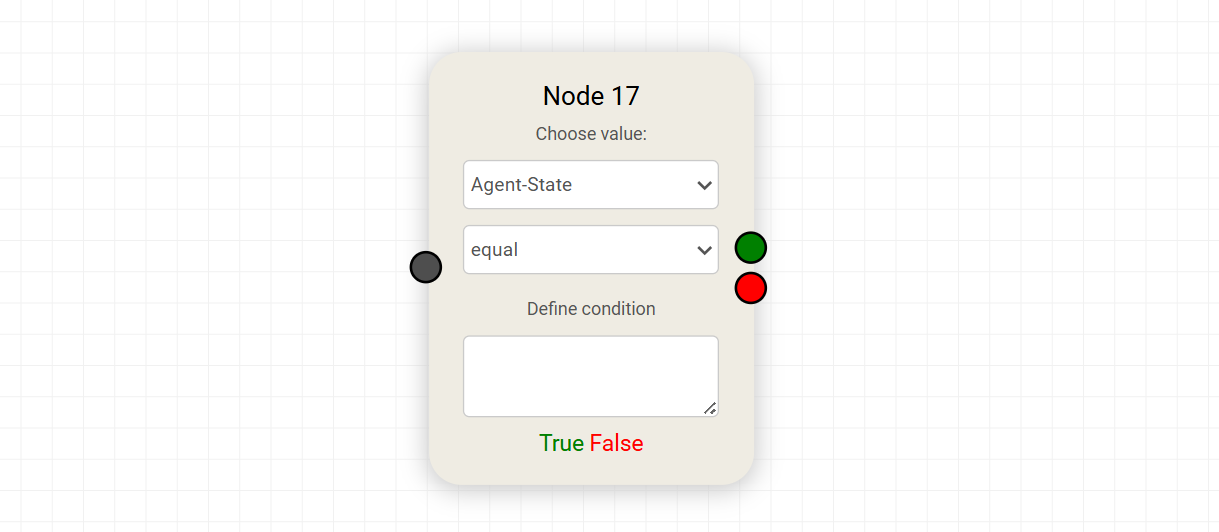
The Condition Node introduces decision-making into the workflow by evaluating a condition and routing execution based on the result. It enables branching logic, allowing the agent to follow different paths depending on the data it receives.
Value Selection
The “Choose value” dropdown determines what data the condition will evaluate.
Default Values
- agent-state Represents the current internal state of the agent
- user-document Refers to the input provided by the user, especially in document-based workflows
- none Used when no predefined value is required
Conditional Operators
The second dropdown defines how the selected value is evaluated. The available operators are:
| Operator | Description |
|---|---|
| equal | Checks if the value matches the defined condition exactly |
| greater | Evaluates if the value is greater than the condition |
| less than | Evaluates if the value is less than the condition |
| read & eval | Interprets and evaluates the value using custom logic or expressions |
Operator
equal
Description
Checks if the value matches the defined condition exactly
Operator
greater
Description
Evaluates if the value is greater than the condition
Operator
less than
Description
Evaluates if the value is less than the condition
Operator
read & eval
Description
Interprets and evaluates the value using custom logic or expressions
Define Condition
The Define condition field is where the comparison value or expression is specified.
- Can be a static value, keyword, or expression
- Works in combination with the selected operator
- Should align with the data type of the selected value
Outputs
The Condition Node has two possible execution paths:
- True (Green output) → Followed when the condition is satisfied
- False (Red output) → Followed when the condition is not satisfied
Key Characteristics
- Enables branching and control flow within the agent
- Works with both predefined and dynamic values
- Integrates seamlessly with outputs from previous nodes
- Supports simple comparisons as well as advanced evaluations
Notes
- Ensure the selected value exists in the workflow before using it in a condition
- Use clear and predictable outputs from previous nodes to avoid ambiguity
- Combine with Classifier Nodes for more intelligent routing decisions
9. Transformer Node
The Transformer Node is used to access, extract, and reshape data from different stages of the agent’s execution. It enables you to work with intermediate outputs and reuse them in downstream steps.
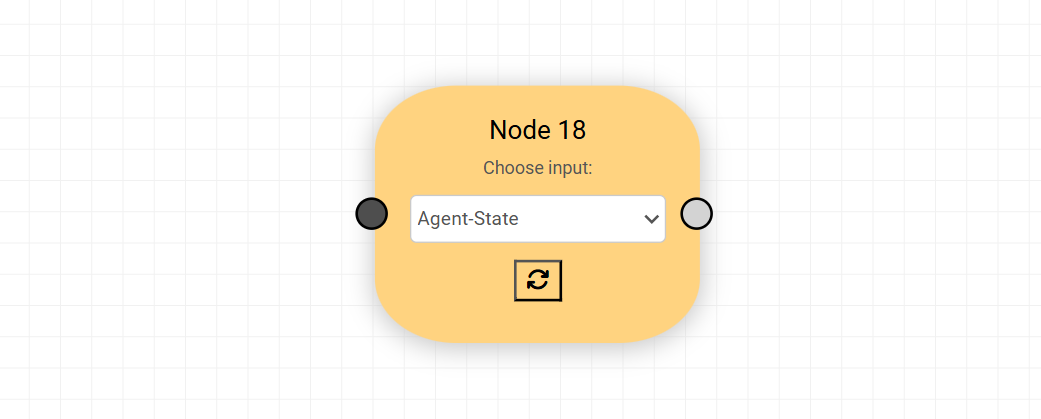
Unlike standard processing nodes, Transformers focus on state access and data transformation, making them essential for building flexible, multi-step workflows.
Purpose
Transformers allow you to:
- Retrieve data from any step in the agent’s process
- Reuse outputs without recomputing them
- Restructure or prepare data for the next node
For example, if an agent workflow has 5 steps, a Transformer can pull data from any intermediate state (step 1, 2, 3, etc.) and pass it forward for further processing.
Input Selection
The “Choose input” dropdown defines which data source the Transformer will use.
Default Inputs
- agent-state Provides access to the internal state of the agent across all steps
- user-document Refers to the original input provided by the user
- none Used when no predefined input is required
Dynamic Key Inputs
Dynamic Key inputs may include:
rag_answerrag_sourcesagent_reportdescription- Any other fields produced during execution
These dynamic options are created based on previous agent activity and allow Transformers to integrate seamlessly with the evolving data flow of the agent.
How It Works
- The Transformer displays a specific input (state or output)
- It extracts or reshapes the data
- The transformed result is passed to the next connected node depending on user selection and intent
Key Characteristics
- Enables access to intermediate and final outputs
- Supports data reuse across multiple steps
- Decouples data retrieval from processing logic
- Improves modularity and flexibility of workflows
When to Use
- When you need to reference outputs from earlier steps
- When preparing data for another node (e.g., Bot, Classifier, Condition)
- When working with multi-step or stateful agent flows
- Extremely useful in dealing with CSVs or other data structures when filtering, sorting, or searching prior to continuing to a next agent state/node of activity
Notes
- Ensure the selected input exists in the workflow before using it
- Use meaningful outputs in earlier nodes to simplify transformations
- Transformers are especially powerful when combined with Conditions and Nodes for dynamic execution paths
10. Files
The Files section is used to upload, manage, and associate assets with the agent.
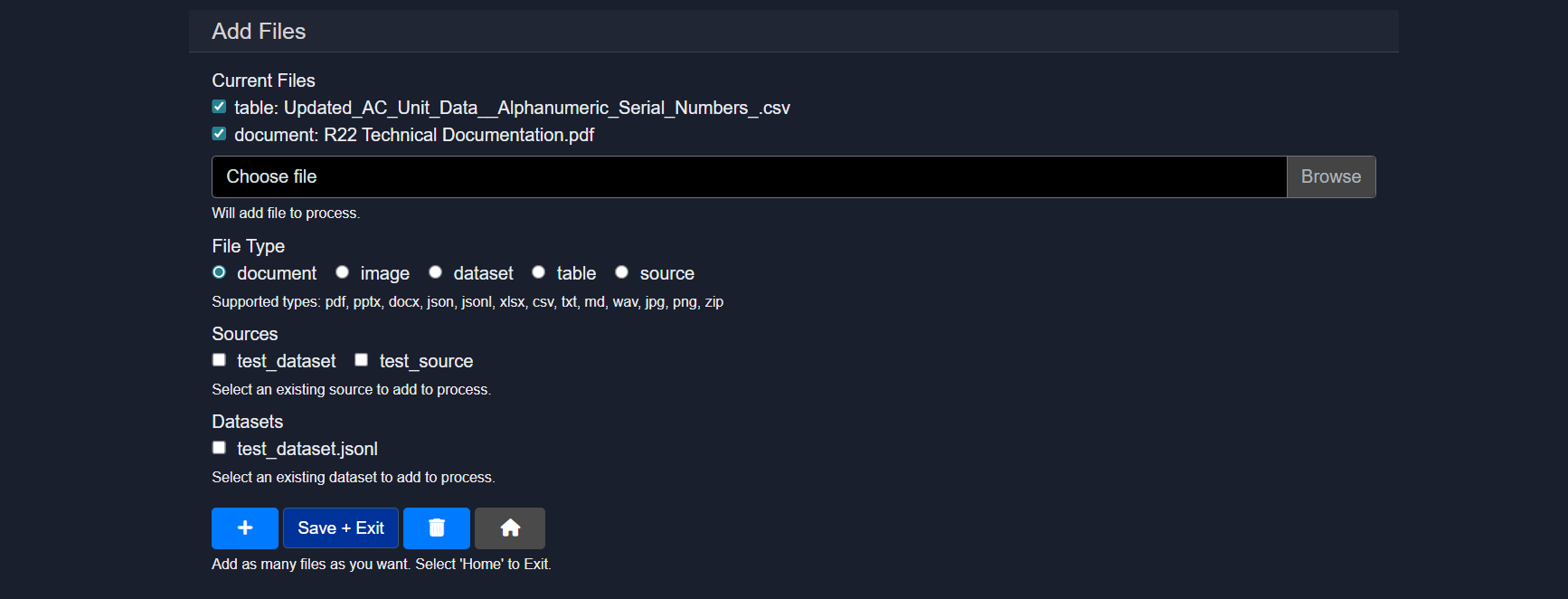
Capabilities include:
- Uploading documents, images, tables, datasets, or zipped sources
- Assigning file types such as document, image, dataset, table, or source
- Reusing existing datasets or sources already available in the workspace
Uploaded files become available as contexts that can be selected by agent services such as parse_document, build_table, or vision. Multiple files can be added before saving and exiting.
11. Services
The Services section defines all the capabilities available to an agent. These services power the execution of Node, Classifier, Bot, and Transformer components in the workflow.
Only services that are added and enabled in this section will be available for selection inside nodes. This ensures controlled, predictable, and modular agent behavior.
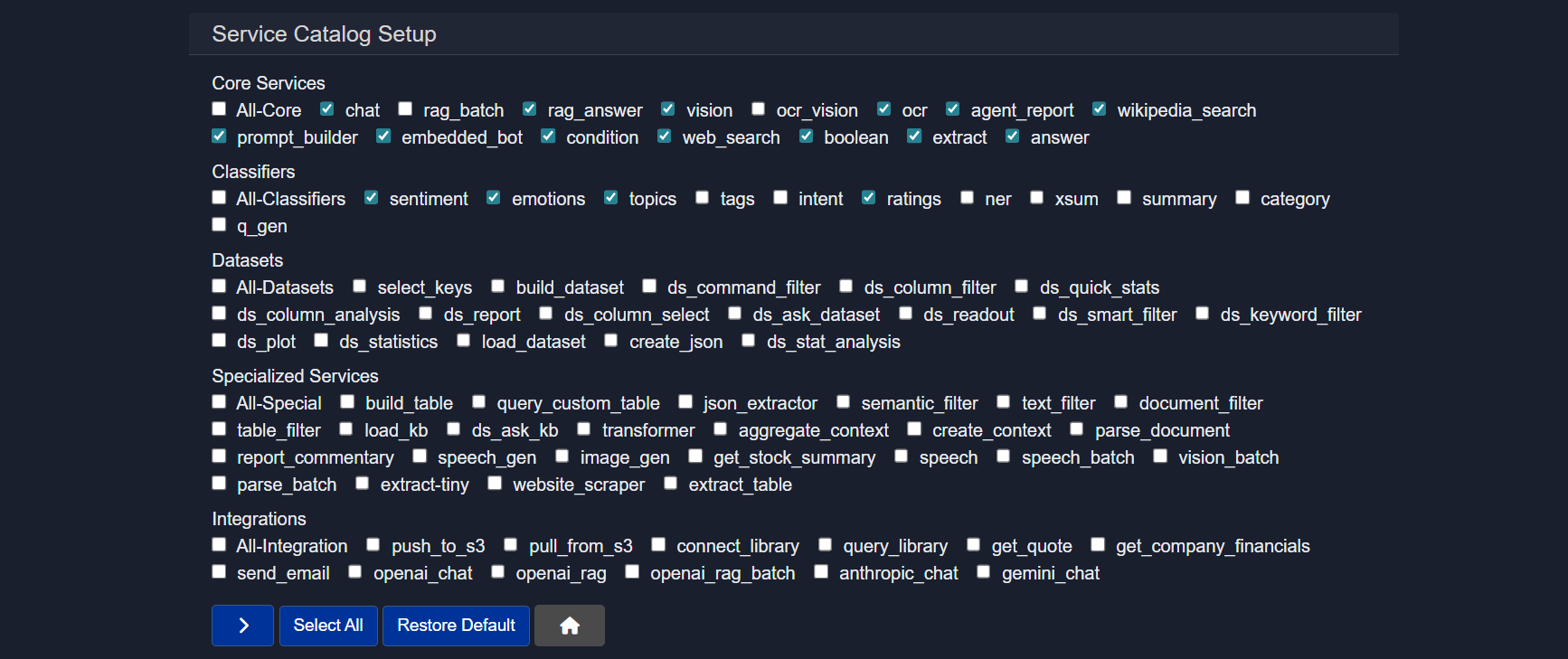
Core services
General building blocks for common tasks such as chat, retrieval, extraction, and logic control.
Examples:
chat– conversational responsesrag_answer– retrieval-augmented answersvision– image understandingocr– text extraction from imagesweb_search– online search retrievalextract– structured field extractionanswer– direct question answeringprompt_builder– dynamic prompt creationagent_report– report generationembedded_bot– embedded executioncondition– branching logicboolean– rule evaluation
Classifiers
Lightweight text analysis tools for labeling or scoring content.
- sentiment – positive/negative tone detection
- emotions – emotional classification
- topics – topic categorization
- tags – keyword tagging
- intent – intent recognition
- ratings – scoring or grading
- ner – named entity recognition
- summary – concise text summaries
- category – predefined grouping
- q_gen – question generation
Datasets
Tools for preparing, querying, and analyzing structured data.
- select_keys - selects specified keys from a JSON dictionary
- build_dataset – create datasets from JSON
- ds_command_filter - applies filter commands to a dataset
- ds_column_filter - keep rows where a selected column meets your condition
- ds_quick_stats – generates a statistical report based on selected column
- ds_column_analysis - generates a report based on selected column
- ds_report - generate a report of the dataset and the workflow results based on the agent run
- ds_column_select - returns the selcted column from the dataset
- ds_ask_dataset - use a natural language question to retrieve relevant information from the dataset
- ds_readout - returns the text from a set of rows from the dataset for display
- ds_smart_filter – find rows that match the meaning of your query
- ds_keyword_filter - filter rows based on exact text matches in the selected column
- dataset_plot – visualize data
- ds_statistics – perform deeper statistical analysis and generate insights
- load_dataset – load saved datasets
- create_json – provide a list of agent keys to consolidate into a new JSON dictionary
- ds_stat_analysis - generate statistical analysis of input data csv file
Specialized services
Advanced utilities for targeted or complex workflows.
- build_table - create table from CSV data
- query_custom_table - database look-up in natural language
- json_extractor - converts a text chunk with embedded json into a structured dataset element
- semantic_filter – meaning-based filtering
- text_filter – rule-based text filtering
- document_filter – document-level filtering
- table_filter – structured table filtering
- load_kb - load knowledge base into agent state used in 'ask_kb' calls
- ds_ask_kb - answers knowledge base questions from a dataset input
- transformer – text transformation tasks
- aggregate_context - provide a list of context names to consolidate
- parse_document – convert documents to text files
- create_context – build reusable context blocks from the most relevant passages in a source based on query
- report_commentary – generate commentary of key process results from the agent-state - no input context required
- speech_gen – generate audio output from text
- image_gen – generate images from text
- get_stock_summary - stock ticker look-up (requires internet access)
- speech - transcribe a speech file
- speech_batch - transcribe a collection of speec
- vision_batch - answer question based on a collection of image files
- parse_batch - create source from document batch
- extract_tiny - extracts a key-value pair
- website_scraper – extract web content from allowed websites (note: many websites prevent this)
- extract_table – extract tables from documents based on query
Integrations
Connect the agent to external systems or hosted models.
Examples include storage services, email, and external model providers.
Custom services
Workspace-specific or user-defined services added for specialized use cases.
Below is the list of supported services, their expected instruction formats, descriptions, and applicable context sources.
| Service Name | Instruction | Description | Context |
|---|---|---|---|
| chat | What is your question or instruction? | Answers a question or performs instruction | MAIN-INPUT, User-Text, None |
| rag_batch | Enter question or instruction | Performs RAG over batch of documents | User-Document |
| rag_answer | Ask question to longer document input | Answers a question based on a longer document input | User-Source, Provide_instruction_or_query |
| vision | Enter question to image file | Provides answer/description from image | User-Image |
| ocr_vision | Enter instruction | Performs OCR + vision-based understanding | User-Document, User-Image |
| ocr | Enter name of new document source | Extracts content from image-based or protected documents | User-Document |
| agent_report | Enter title for agent report | Prepares report on agent output | - |
| wikipedia_search | Add Wikipedia Articles as Research Context | Adds Wikipedia articles as research context | None |
| prompt_builder | Enter prompt instruction | Builds structured prompts | None |
| embedded_bot | Optional | Pauses execution for user interaction | None |
| condition | Enter expression | Evaluates logical condition | None |
| web_search | Add query | Performs web search and returns structured results | None |
| boolean | Provide yes/no question | Provides yes/no answer with explanation | MAIN-INPUT, User-Text |
| extract | Enter extraction key | Extracts key-value pair | MAIN-INPUT, User-Text |
| answer | What is your question? | Answers specific question from passage | MAIN-INPUT, User-Text |
| sentiment | No instruction required | Analyzes sentiment | MAIN-INPUT, User-Text |
| emotions | No instruction required | Analyzes emotion | MAIN-INPUT, User-Text |
| topics | No instruction required | Classifies topic | MAIN-INPUT, User-Text |
| tags | No instruction required | Generates tags | MAIN-INPUT, User-Text |
| intent | No instruction required | Classifies intent | MAIN-INPUT, User-Text |
| ratings | No instruction required | Rates positivity (1–5) | MAIN-INPUT, User-Text |
| ner | No instruction required | Named entity recognition | MAIN-INPUT, User-Text |
| xsum | No instruction required | Generates extreme summary | MAIN-INPUT, User-Text |
| summary | Optional | Summarizes content | MAIN-INPUT, User-Text |
| category | No instruction required | Classifies category | MAIN-INPUT, User-Text |
| q_gen | No instruction required | Generates questions | MAIN-INPUT, User-Text |
| build_dataset | Enter dataset name | Create datasets from JSON | JSON Input |
| select_keys | Enter keys | Select specified keys from a JSON dictionary | JSON Input |
| ds_plot | Enter visualization instruction | Visualize dataset | Dataset |
| load_dataset | Enter dataset name | Load saved datasets | Dataset |
| create_json | Enter keys list | Consolidate agent keys into JSON dictionary | Agent-State |
| ds_command_filter | Enter filter command | Applies filter commands to a dataset | Dataset |
| ds_column_filter | Enter column condition | Keep rows where a selected column meets condition | Dataset |
| ds_quick_stats | Select column | Generate statistical report based on column | Dataset |
| ds_column_analysis | Select column | Generate report based on selected column | Dataset |
| ds_report | No instruction | Generate dataset + workflow report | Dataset |
| ds_column_select | Select column | Return selected column from dataset | Dataset |
| ds_ask_dataset | Enter query | Query dataset using natural language | Dataset |
| ds_readout | Enter row range | Return text from selected rows | Dataset |
| ds_smart_filter | Enter query | Semantic dataset filtering | Dataset |
| ds_keyword_filter | Enter keyword | Exact keyword filtering | Dataset |
| ds_statistics | No instruction | Perform deeper statistical analysis | Dataset |
| ds_stat_analysis | No instruction | Statistical analysis of CSV dataset | Dataset |
| build_table | Enter table name | Create table from CSV data | User-Table |
| query_custom_table | Enter query | Database lookup in natural language | Table Output |
| json_extractor | Enter schema | Convert embedded JSON text into structured dataset element | MAIN-INPUT, User-Text |
| semantic_filter | Enter instruction | Meaning-based filtering | User-Source |
| text_filter | Enter keyword/topic | Rule-based filtering | User-Source |
| document_filter | Enter document name | Document-level filtering | User-Source |
| table_filter | No instruction | Structured table filtering | User-Source |
| load_kb | Enter KB name | Load knowledge base into agent state | None |
| ds_ask_kb | Enter query | Answer KB questions from dataset input | Dataset |
| transformer | Choose input | Text/data transformation tasks | Agent-State |
| aggregate_context | Enter context names | Consolidate multiple contexts | None |
| parse_document | Enter name | Convert documents to text | User-Document |
| create_context | Enter instruction | Build reusable context blocks from relevant passages | User-Source |
| report_commentary | Optional | Generate commentary from agent state | None |
| speech_gen | Enter text | Generate audio output from text | None |
| image_gen | Enter description | Generate images from text | None |
| get_stock_summary | Enter ticker | Stock lookup | None |
| speech | Enter input | Transcribe a speech file | Audio Input |
| speech_batch | Enter instruction | Transcribe Collection of speech files (Needs Collection Input) | Audio Batch |
| vision_batch | Enter instruction | Reads Collection of images (Needs Collection Input) | User-Document |
| parse_batch | Enter instruction | Create source from document batch | User-Document |
| extract-tiny | Enter key | Extract key-value pair (lightweight) | MAIN-INPUT, User-Text |
| website_scraper | Enter URL | Extract web content from allowed websites | None |
| extract_table | Enter query | Extract tables from documents | User-Document |
| push_to_s3 | Enter path | Upload data to S3 | None |
| pull_from_s3 | Enter path | Download data from S3 | None |
| connect_library | Enter library name | Connect to semantic library | None |
| query_library | Enter query | Query semantic library | Library Context |
| get_quote | Enter symbol | Retrieve stock quote | None |
| get_company_financials | Enter company/ticker | Retrieve financial data | None |
| send_email | Enter email | Send email | Select context |
| openai_chat | Enter instruction | OpenAI chat completion | Text Source |
| openai_rag | Enter instruction | OpenAI RAG query | Text Source |
| openai_rag_batch | Enter instruction | OpenAI batch RAG | Text Source |
| anthropic_chat | Enter instruction | Anthropic chat completion | Text Source |
| gemini_chat | Enter instruction | Gemini chat completion | Text Source |
Service Name
chat
Instruction
What is your question or instruction?
Description
Answers a question or performs instruction
Context
MAIN-INPUT, User-Text, None
Service Name
rag_batch
Instruction
Enter question or instruction
Description
Performs RAG over batch of documents
Context
User-Document
Service Name
rag_answer
Instruction
Ask question to longer document input
Description
Answers a question based on a longer document input
Context
User-Source, Provide_instruction_or_query
Service Name
vision
Instruction
Enter question to image file
Description
Provides answer/description from image
Context
User-Image
Service Name
ocr_vision
Instruction
Enter instruction
Description
Performs OCR + vision-based understanding
Context
User-Document, User-Image
Service Name
ocr
Instruction
Enter name of new document source
Description
Extracts content from image-based or protected documents
Context
User-Document
Service Name
agent_report
Instruction
Enter title for agent report
Description
Prepares report on agent output
Context
-
Service Name
wikipedia_search
Instruction
Add Wikipedia Articles as Research Context
Description
Adds Wikipedia articles as research context
Context
None
Service Name
prompt_builder
Instruction
Enter prompt instruction
Description
Builds structured prompts
Context
None
Service Name
embedded_bot
Instruction
Optional
Description
Pauses execution for user interaction
Context
None
Service Name
condition
Instruction
Enter expression
Description
Evaluates logical condition
Context
None
Service Name
web_search
Instruction
Add query
Description
Performs web search and returns structured results
Context
None
Service Name
boolean
Instruction
Provide yes/no question
Description
Provides yes/no answer with explanation
Context
MAIN-INPUT, User-Text
Service Name
extract
Instruction
Enter extraction key
Description
Extracts key-value pair
Context
MAIN-INPUT, User-Text
Service Name
answer
Instruction
What is your question?
Description
Answers specific question from passage
Context
MAIN-INPUT, User-Text
Service Name
sentiment
Instruction
No instruction required
Description
Analyzes sentiment
Context
MAIN-INPUT, User-Text
Service Name
emotions
Instruction
No instruction required
Description
Analyzes emotion
Context
MAIN-INPUT, User-Text
Service Name
topics
Instruction
No instruction required
Description
Classifies topic
Context
MAIN-INPUT, User-Text
Service Name
tags
Instruction
No instruction required
Description
Generates tags
Context
MAIN-INPUT, User-Text
Service Name
intent
Instruction
No instruction required
Description
Classifies intent
Context
MAIN-INPUT, User-Text
Service Name
ratings
Instruction
No instruction required
Description
Rates positivity (1–5)
Context
MAIN-INPUT, User-Text
Service Name
ner
Instruction
No instruction required
Description
Named entity recognition
Context
MAIN-INPUT, User-Text
Service Name
xsum
Instruction
No instruction required
Description
Generates extreme summary
Context
MAIN-INPUT, User-Text
Service Name
summary
Instruction
Optional
Description
Summarizes content
Context
MAIN-INPUT, User-Text
Service Name
category
Instruction
No instruction required
Description
Classifies category
Context
MAIN-INPUT, User-Text
Service Name
q_gen
Instruction
No instruction required
Description
Generates questions
Context
MAIN-INPUT, User-Text
Service Name
build_dataset
Instruction
Enter dataset name
Description
Create datasets from JSON
Context
JSON Input
Service Name
select_keys
Instruction
Enter keys
Description
Select specified keys from a JSON dictionary
Context
JSON Input
Service Name
ds_plot
Instruction
Enter visualization instruction
Description
Visualize dataset
Context
Dataset
Service Name
load_dataset
Instruction
Enter dataset name
Description
Load saved datasets
Context
Dataset
Service Name
create_json
Instruction
Enter keys list
Description
Consolidate agent keys into JSON dictionary
Context
Agent-State
Service Name
ds_command_filter
Instruction
Enter filter command
Description
Applies filter commands to a dataset
Context
Dataset
Service Name
ds_column_filter
Instruction
Enter column condition
Description
Keep rows where a selected column meets condition
Context
Dataset
Service Name
ds_quick_stats
Instruction
Select column
Description
Generate statistical report based on column
Context
Dataset
Service Name
ds_column_analysis
Instruction
Select column
Description
Generate report based on selected column
Context
Dataset
Service Name
ds_report
Instruction
No instruction
Description
Generate dataset + workflow report
Context
Dataset
Service Name
ds_column_select
Instruction
Select column
Description
Return selected column from dataset
Context
Dataset
Service Name
ds_ask_dataset
Instruction
Enter query
Description
Query dataset using natural language
Context
Dataset
Service Name
ds_readout
Instruction
Enter row range
Description
Return text from selected rows
Context
Dataset
Service Name
ds_smart_filter
Instruction
Enter query
Description
Semantic dataset filtering
Context
Dataset
Service Name
ds_keyword_filter
Instruction
Enter keyword
Description
Exact keyword filtering
Context
Dataset
Service Name
ds_statistics
Instruction
No instruction
Description
Perform deeper statistical analysis
Context
Dataset
Service Name
ds_stat_analysis
Instruction
No instruction
Description
Statistical analysis of CSV dataset
Context
Dataset
Service Name
build_table
Instruction
Enter table name
Description
Create table from CSV data
Context
User-Table
Service Name
query_custom_table
Instruction
Enter query
Description
Database lookup in natural language
Context
Table Output
Service Name
json_extractor
Instruction
Enter schema
Description
Convert embedded JSON text into structured dataset element
Context
MAIN-INPUT, User-Text
Service Name
semantic_filter
Instruction
Enter instruction
Description
Meaning-based filtering
Context
User-Source
Service Name
text_filter
Instruction
Enter keyword/topic
Description
Rule-based filtering
Context
User-Source
Service Name
document_filter
Instruction
Enter document name
Description
Document-level filtering
Context
User-Source
Service Name
table_filter
Instruction
No instruction
Description
Structured table filtering
Context
User-Source
Service Name
load_kb
Instruction
Enter KB name
Description
Load knowledge base into agent state
Context
None
Service Name
ds_ask_kb
Instruction
Enter query
Description
Answer KB questions from dataset input
Context
Dataset
Service Name
transformer
Instruction
Choose input
Description
Text/data transformation tasks
Context
Agent-State
Service Name
aggregate_context
Instruction
Enter context names
Description
Consolidate multiple contexts
Context
None
Service Name
parse_document
Instruction
Enter name
Description
Convert documents to text
Context
User-Document
Service Name
create_context
Instruction
Enter instruction
Description
Build reusable context blocks from relevant passages
Context
User-Source
Service Name
report_commentary
Instruction
Optional
Description
Generate commentary from agent state
Context
None
Service Name
speech_gen
Instruction
Enter text
Description
Generate audio output from text
Context
None
Service Name
image_gen
Instruction
Enter description
Description
Generate images from text
Context
None
Service Name
get_stock_summary
Instruction
Enter ticker
Description
Stock lookup
Context
None
Service Name
speech
Instruction
Enter input
Description
Transcribe a speech file
Context
Audio Input
Service Name
speech_batch
Instruction
Enter instruction
Description
Transcribe Collection of speech files (Needs Collection Input)
Context
Audio Batch
Service Name
vision_batch
Instruction
Enter instruction
Description
Reads Collection of images (Needs Collection Input)
Context
User-Document
Service Name
parse_batch
Instruction
Enter instruction
Description
Create source from document batch
Context
User-Document
Service Name
extract-tiny
Instruction
Enter key
Description
Extract key-value pair (lightweight)
Context
MAIN-INPUT, User-Text
Service Name
website_scraper
Instruction
Enter URL
Description
Extract web content from allowed websites
Context
None
Service Name
extract_table
Instruction
Enter query
Description
Extract tables from documents
Context
User-Document
Service Name
push_to_s3
Instruction
Enter path
Description
Upload data to S3
Context
None
Service Name
pull_from_s3
Instruction
Enter path
Description
Download data from S3
Context
None
Service Name
connect_library
Instruction
Enter library name
Description
Connect to semantic library
Context
None
Service Name
query_library
Instruction
Enter query
Description
Query semantic library
Context
Library Context
Service Name
get_quote
Instruction
Enter symbol
Description
Retrieve stock quote
Context
None
Service Name
get_company_financials
Instruction
Enter company/ticker
Description
Retrieve financial data
Context
None
Service Name
send_email
Instruction
Enter email
Description
Send email
Context
Select context
Service Name
openai_chat
Instruction
Enter instruction
Description
OpenAI chat completion
Context
Text Source
Service Name
openai_rag
Instruction
Enter instruction
Description
OpenAI RAG query
Context
Text Source
Service Name
openai_rag_batch
Instruction
Enter instruction
Description
OpenAI batch RAG
Context
Text Source
Service Name
anthropic_chat
Instruction
Enter instruction
Description
Anthropic chat completion
Context
Text Source
Service Name
gemini_chat
Instruction
Enter instruction
Description
Gemini chat completion
Context
Text Source
Conclusion
The Visual Builder establishes a clear and structured approach to agent design by translating complex workflows into an intuitive visual format. By organizing execution into interconnected nodes—covering inputs, processing, decision-making, and transformation—it enables users to construct both simple and highly sophisticated agents within a single, unified canvas.
Throughout the system, emphasis is placed on modularity, reusability, and controlled capability exposure. Components such as Nodes, Classifiers, Bots, Conditions, and Transformers work together to create flexible pipelines, while the Services and Files sections ensure that only explicitly configured resources and capabilities are used. This not only improves maintainability but also promotes consistency across different agent implementations.
Key mechanisms like Condition nodes introduce dynamic branching, and Transformer nodes provide access to intermediate execution states, allowing workflows to evolve beyond linear processing into adaptive, state-aware systems. At the same time, reusable bots and services reduce duplication and streamline development.
Finally, the use of concise instruction fields and UI-oriented labels maintains clarity for end users without disrupting the overall documentation style. Together, these elements position the Visual Builder as a scalable and user-friendly framework for designing, managing, and executing agent workflows with both precision and flexibility.
For further assistance or to share feedback, please contact us at support@aibloks.com