
Model HQ
DocumentationEditing agents in Model HQ
The Edit Agent feature in Model HQ lets you change and improve agents after they’ve been created. You can make simple updates or completely redesign how the workflow works.
You can:
- Add or remove steps
- Add or remove files used in the agent process
- Change settings such as models
- Update outputs and formats
This makes it easy to update agents as your needs change, without starting from scratch.
There are two ways to edit an agent:
- Step-by-step editor
- Shows the workflow as a simple list of steps
- Best for quick changes and precise control
- Visual Builder
- Shows the workflow as a diagram
- Best for visual understanding of the workflow
Both views work on the same agent, so you can switch between them anytime.
This guide will show you how to:
- Open and use the Edit interface
- Understand key sections like inputs, outputs, and settings
- Use action buttons (like Run, Files, Reports, and Controls)
- Edit workflows using the Visual Builder
Learning how to edit agents is important for keeping them up to date, improving performance, and reusing them for different use cases.

Build Live Demos for AI Agents | Model HQ Agent Demo Mode

Sharing Agents with No Hardware Lock-In on Model HQ (Intel ↔ Qualcomm, Zero Changes)

Build and Deploy AI Agents in Minutes on AI PCs - No Code Needed

Contract Analyzer Agent in Minutes (No-Code + Offline) | Model HQ Demo
1. Launching the edit interface
Editing an existing agent process is straightforward in Model HQ.
The agent to be edited should be selected from the dropdown, and the edit button can be clicked.
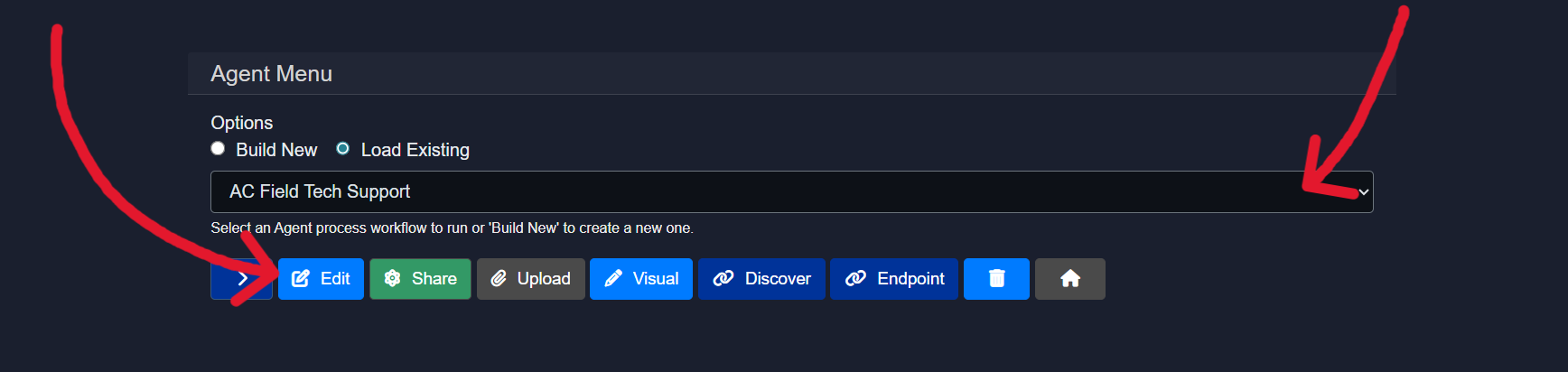
Once clicked, an option to use the Visual Builder for editing the agent will be presented.

The Visual Builder shows your agent as a node-and-connection diagram, making it easy to see how steps are linked and how data flows through the workflow.
When you make changes in the Visual Builder, you’ll still review everything in a step-by-step format before saving, so you can clearly confirm the final sequence.
For editing, the step-based editor can be the easiest and fastest option—it makes it simple to add, remove, or adjust individual steps (by adding or deleting rows) without navigating a visual layout.
The choice between the two editing modes is entirely optional. If detailed information about the Visual Builder is required, the Agent Visual Builder Mode documentation should be consulted.
Both editing approaches will be covered in this document. The step-based editor (without Visual Builder) will be explained first.
2. Editing an agent (without visual builder)
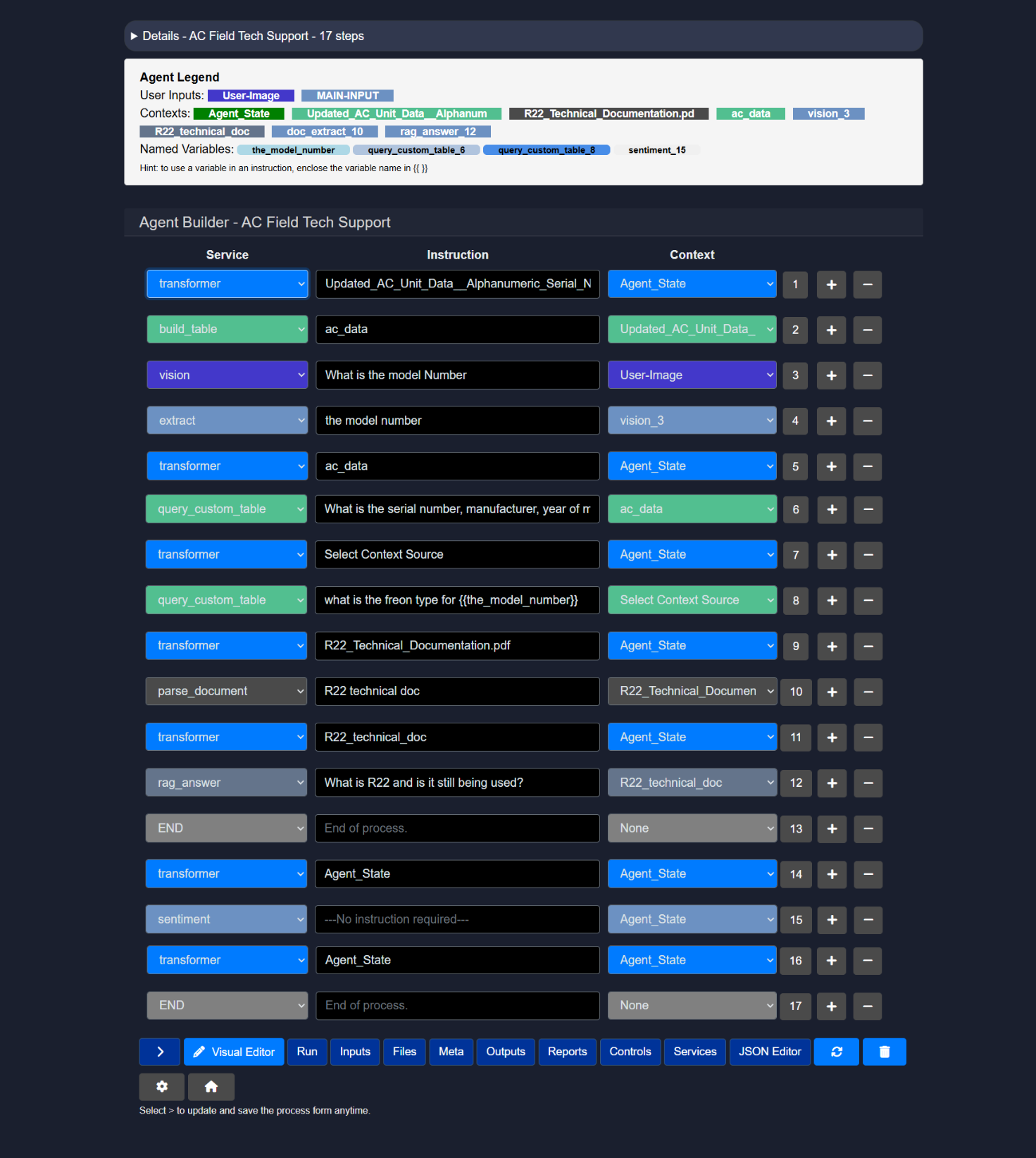
This section explains how agents can be edited using the step-based editor. An agent is defined as a linear sequence of steps where each step connects a service, an instruction, and a context. Execution always happens sequentially from the first step to END.
2.1 Details view
The Details view is collapsible by default and provides a high-level, read-only overview of the agent.
The view includes:
- A flowchart visualizing the complete execution path from Start to End
- A numbered list of steps showing the order of execution
- A short description of what each step performs
This view is primarily used to understand the agent flow without modifying it.
2.2 Agent legend
The Agent Legend appears below the Details view and summarizes all key components used by the agent.
The legend includes:
- User Inputs such as text input or image input
- Contexts including files, tables, parsed documents, and intermediate outputs
- Named Variables created during execution and reused across steps
Named variables must be referenced inside instructions using {{variable_name}}.
This section helps track how data moves through the agent.
2.3 Editing steps
Each row in the Agent Builder represents a single step. Each step can be deleted by clicking on the "-" in the same row. A step or a row will be created directly after the current row by clicking "+" to add a step.
The number next to the context column connotes the numbered order of the agent step. This is helpful when referencing that particular step in the agent process in a future agentic step.
Every step is composed of:
- Service Selects the capability used in that step. There is an extensive list of supported services. The services displayed in Service Name depends on the selection in the services button at the bottom of the Step-Based editor or the side nav of the Visual Editor. User must check the service name in order for that particular service to be displayed as an option.
- Instruction A natural language instruction describing what the service should do. (note: some services do not require any input and will be denoted as such) Instructions may also reference named variables
{{variable_name}}(i.e., the result of an earlier step in an agent process).
- Context Defines the input source used by the service.
Steps are always executed from top to bottom in the order shown.
Below is the list of supported services, their expected instruction formats, descriptions, and applicable context sources.
2.4 Example: AC field tech support agent
The example below demonstrates an AC Field Tech Support agent configured with 8 sequential steps.
2.4.1 Step-based execution flow
The agent executes steps from top to bottom. Each step can produce outputs that are reused in later steps using named variables.
Execution order in this example:
- Build structured data from CSV
- Read information from an image
- Extract a specific value
- Query structured data
- Query structured data again using a variable
- Parse a technical document
- Answer a question using retrieved context
- End the process
2.5 Action buttons
The Action Buttons provide quick access to configure inputs, manage files, execute the agent, inspect metadata, review outputs, and control the overall agent lifecycle. Each button opens a focused view related to a specific stage of the agent workflow.
2.5.1 Visual editor
The Visual Editor opens the drag-and-drop canvas used to build and edit the agent workflow.
This interface opens the visual builder, where you can:
- Nodes can be added, connected, and reordered
- Services and inputs can be configured
- Execution flow can be visually inspected
2.5.2 Run
The Run action executes a test run of the agent using the currently configured inputs, files, and workflow.
During execution:
- Nodes are executed sequentially from top to bottom
- Intermediate outputs are generated and stored as named variables
- Any configuration or logic issues surface immediately during the run
This mode is primarily used for validation, debugging, and iteration before publishing or sharing the agent.
2.5.3 Inputs
The Inputs button can be used to configure or update the user inputs required to run the agent.
Supported input types:
MAIN-INPUT– primary text inputUser-Document– documents in various formatsUser-Image– image files such as PNG or JPGUser-Table– structured data like CSV or JSONUser-Source– a collection of multiple files treated as one sourceUser-Text– short text snippetsNone– no user input required
Selecting the correct inputs is critical. The user must provide values for all selected input types when running the agent. By default, MAIN-INPUT (text) is enabled.
Input-specific notes:
- MAIN-INPUT (text) Free-form text can be pasted into a text field. The current limit is 5000 characters, roughly two pages of text.
- User-Document Used for larger documents. These must be processed first using the
parse_documentservice before being used by downstream services such asrag_answer,semantic_filter, orcreate_context.
- User-Table Accepts CSV or JSON files. Tables must first be processed with the
build_tableservice to extract data and store it in a local SQL table. Once built, the table can be queried usingquery_custom_table.
Typical flow:
- User-Image Image files such as PNG or JPEG. Images must first be processed with the
visionservice, which converts visual content into text-based output that can be reused by later steps.
- User-Text Optional secondary context provided by the user.
- User-Source Allows users to upload multiple files as a single object. Parsing, table building, and vision processing are handled automatically. For best results, it is recommended to apply
semantic_filterandcreate_contextearly in the workflow.
2.5.4 Files
The Files section is used to upload, manage, and associate assets with the agent.
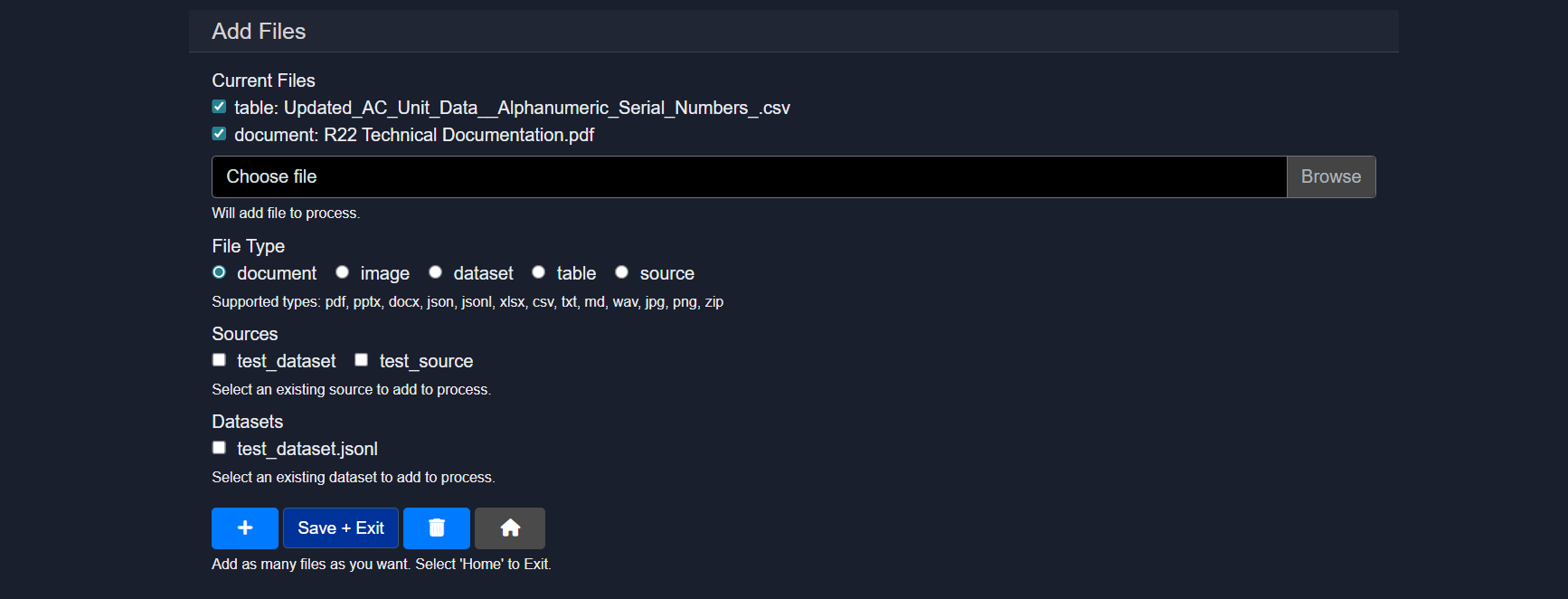
Capabilities include:
- Uploading documents, images, tables, datasets, or zipped sources
- Assigning file types such as document, image, dataset, table, or source
- Reusing existing datasets or sources already available in the workspace
Uploaded files become available as contexts that can be selected by agent services such as parse_document, build_table, or vision. Multiple files can be added before saving and exiting.
2.5.5 Meta
The Meta section allows descriptive and presentation-related information for the agent to be defined.
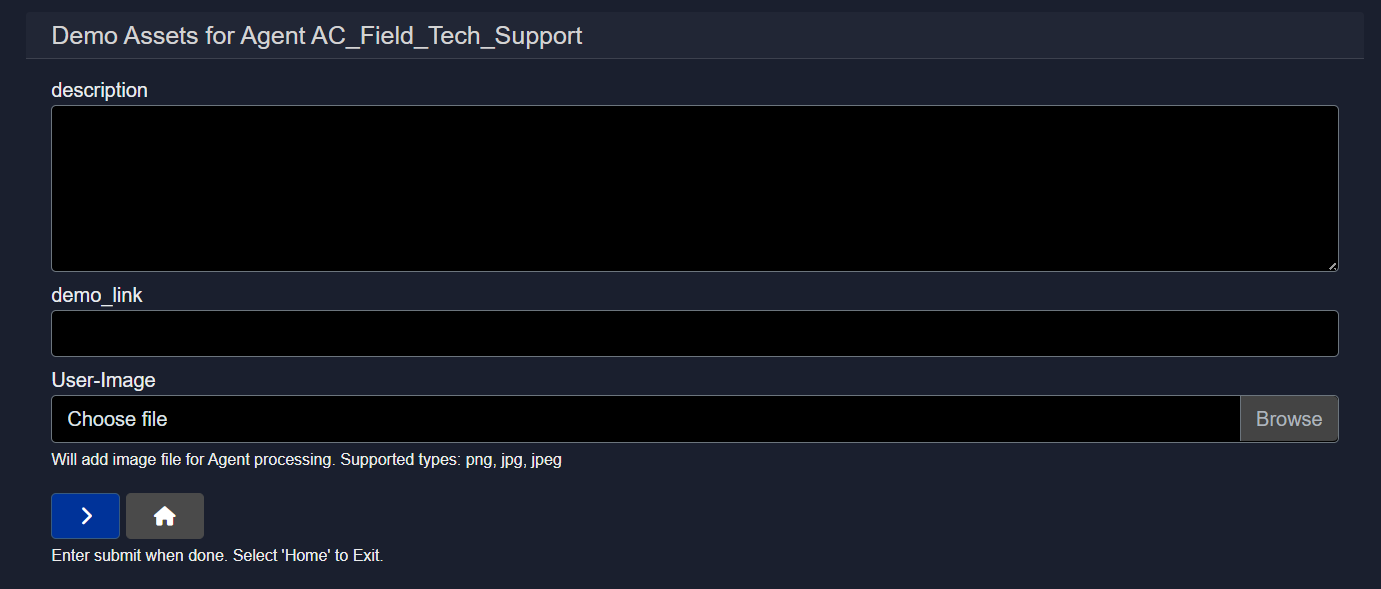
This typically includes:
- A short description of what the agent does
- Optional demo links
- A user-facing image associated with the agent
Meta information does not affect execution but is used for documentation, discovery, and presentation.
2.5.6 Outputs
The Outputs section controls what the agent returns after execution.
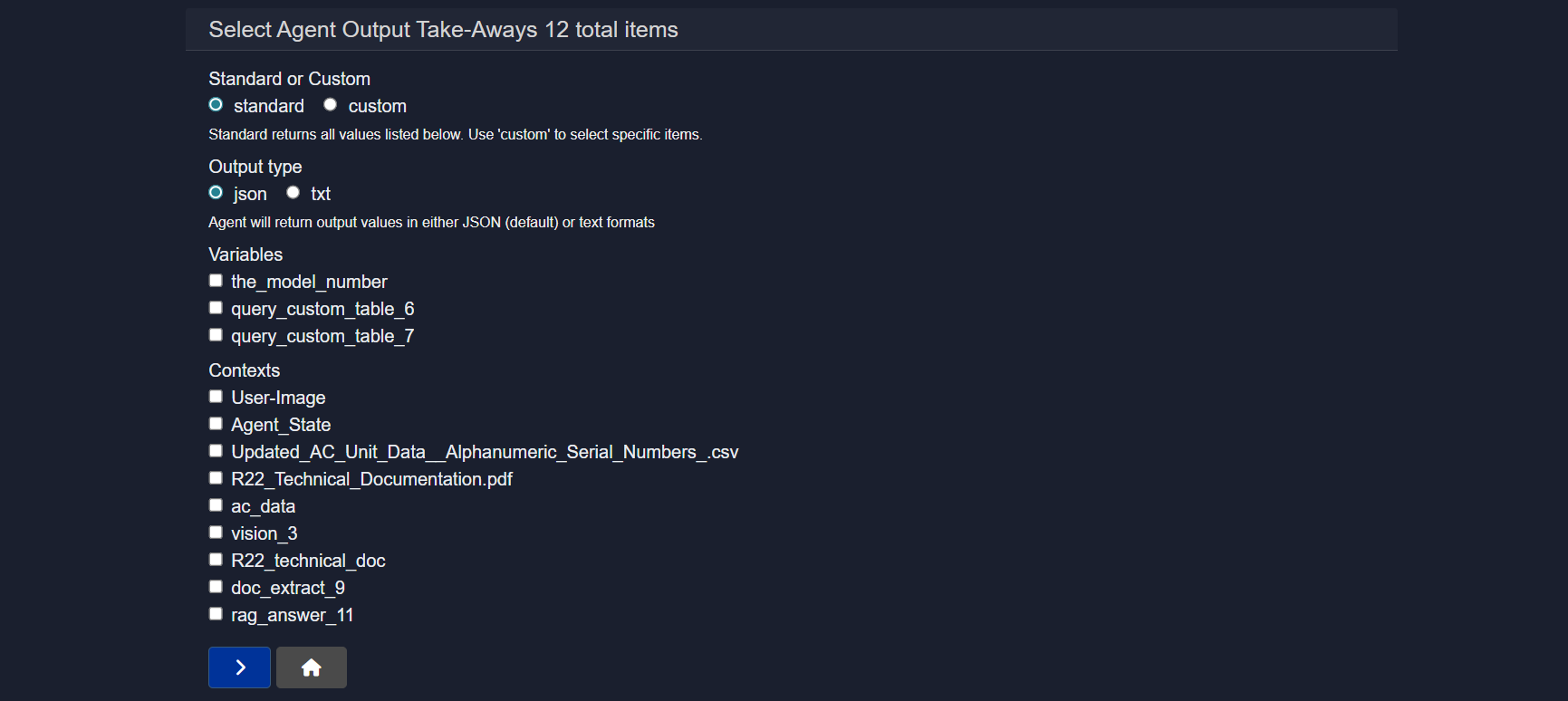
Options include:
- Standard or custom output selection
- JSON or text-based output formats
- Selecting specific variables, contexts, or intermediate results to expose
This allows fine-grained control over what consumers of the agent actually receive, rather than returning all internal state by default.
2.5.7 Reports
The Reports section controls how agent execution results are packaged into structured, downloadable documents for different audiences such as business users, engineers, or compliance reviewers.
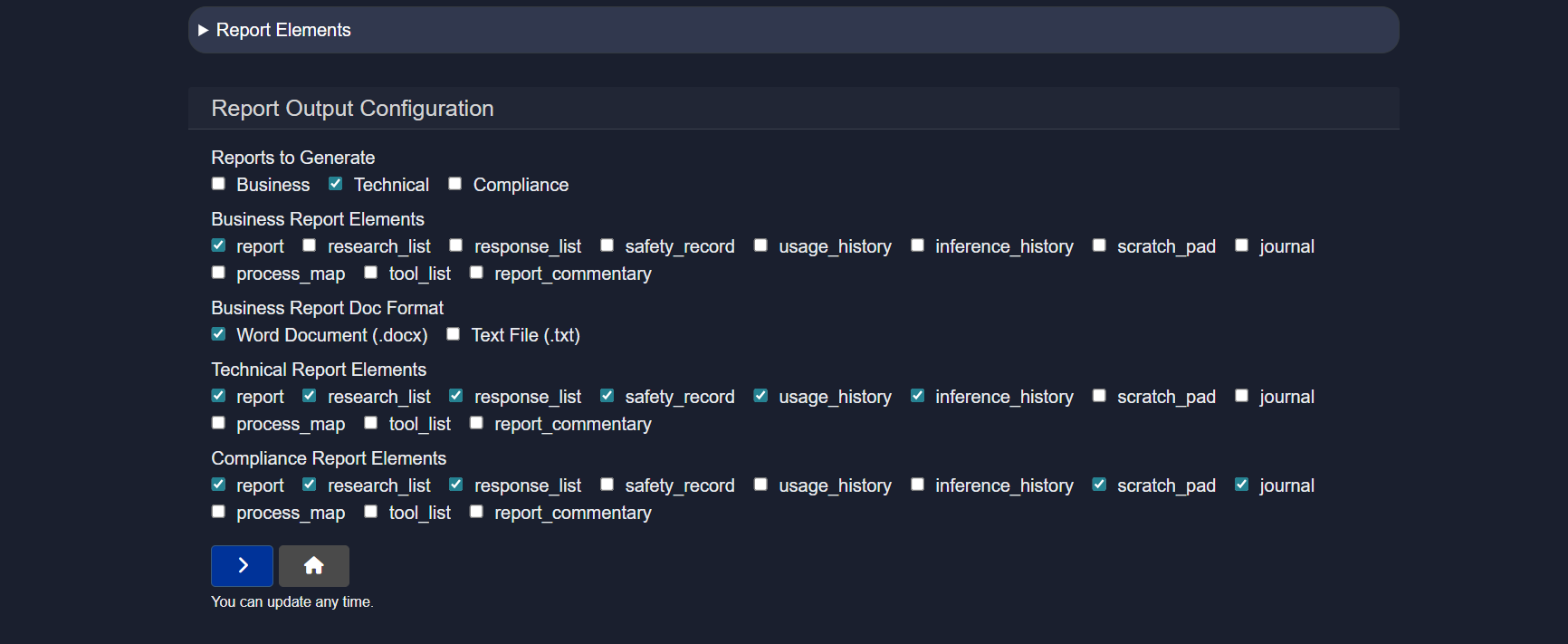
One or more report types can be generated simultaneously:
- Business – high-level summaries focused on outcomes and insights
- Technical – detailed execution logs and system behavior for debugging
- Compliance – safety, audit, and governance records
Each report type allows selection of which elements should be included:
report– final results or conclusionsresearch_list– sources or references used during executionresponse_list– responses generated by each node or stepsafety_record– redactions, filters, and control actions appliedusage_history– token usage, runtime, and performance statisticsinference_history– model calls and inference detailsscratch_pad– shared state and intermediate variablesjournal– chronological execution logprocess_map– visual representation of the workflowtool_list– tools and services usedreport_commentary– optional notes or annotations
Output formats:
- Word (.docx) – formatted and presentation-ready
- Text (.txt) – plain logs or lightweight exports
Reports can be regenerated at any time after a run.
2.5.8 Controls
The Controls section applies safety, privacy, and content protections automatically during agent execution. These safeguards help prevent sensitive data exposure, unsafe outputs, and malicious inputs without requiring changes to the workflow itself.
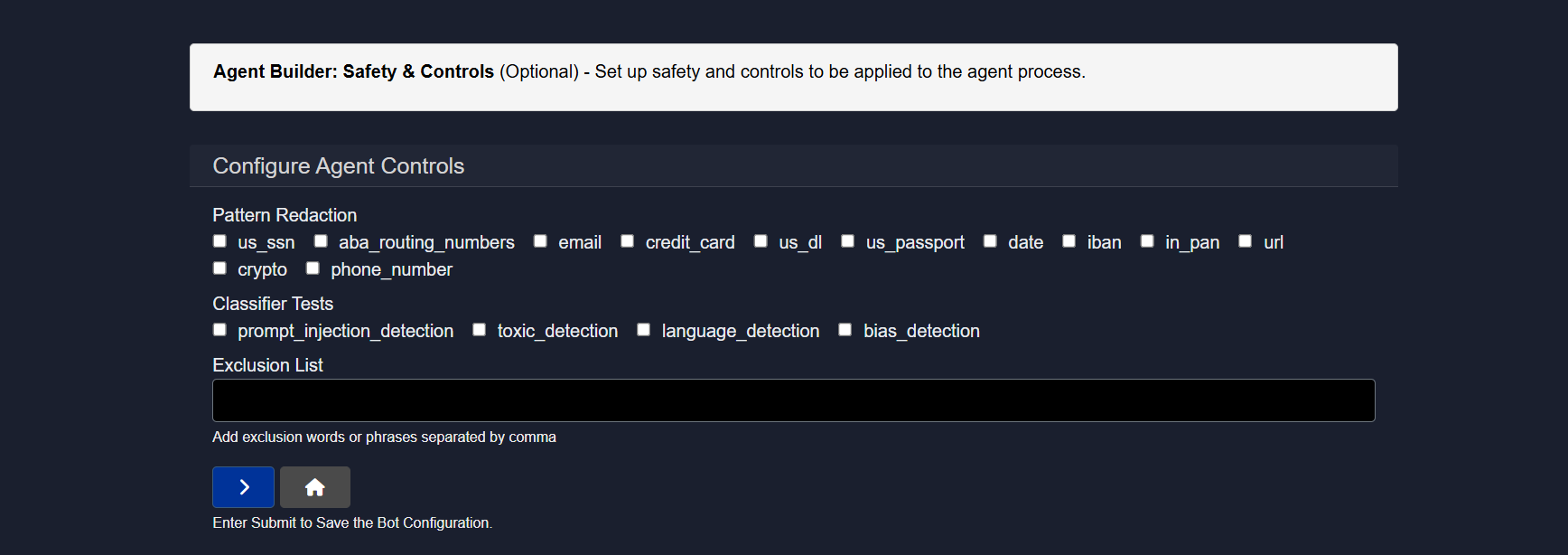
Pattern redaction
Sensitive data is automatically detected and masked before it is processed.
Supported patterns include:
- SSN
- ABA routing numbers
- Credit card
- Driver’s license
- Passport
- Dates
- IBAN
- PAN
- URLs
- Crypto addresses
- Phone numbers
Detected values are redacted or replaced automatically.
Classifier tests
Automated content checks are applied:
prompt_injection_detection– blocks malicious or manipulative promptstoxic_detection– flags unsafe or harmful languagelanguage_detection– identifies the language of the inputbias_detection– detects potentially biased or sensitive content
Exclusion list
Custom words or phrases (comma-separated) can be specified to be blocked or ignored during execution.
2.5.9 Services
The Services section is the service catalog for the agent. It determines which capabilities are available when building workflows. Only enabled services can be added as nodes.
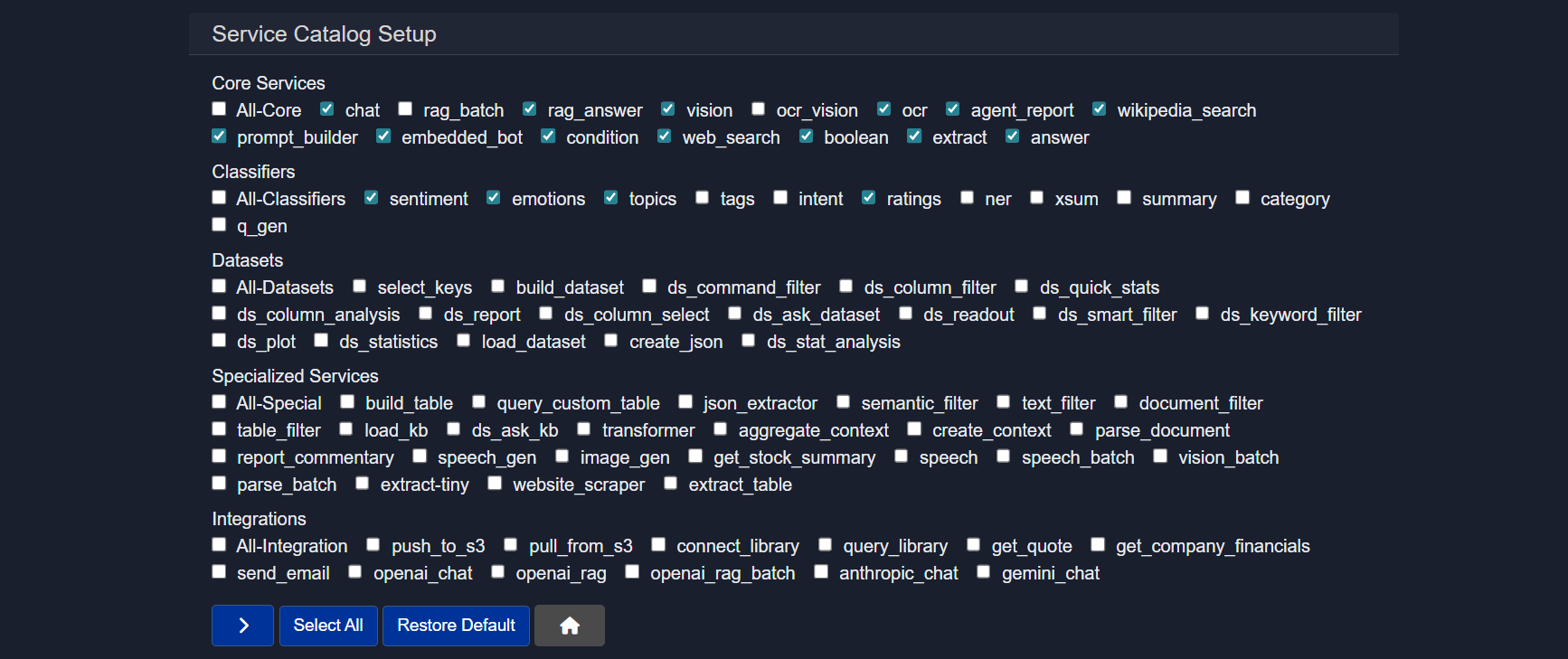
Core services
General building blocks for common tasks such as chat, retrieval, extraction, and logic control.
Examples:
chat– conversational responsesrag_answer– retrieval-augmented answersvision– image understandingocr– text extraction from imagesweb_search– online search retrievalextract– structured field extractionanswer– direct question answeringprompt_builder– dynamic prompt creationagent_report– report generationembedded_bot– embedded executioncondition– branching logicboolean– rule evaluation
Classifiers
Lightweight text analysis tools for labeling or scoring content.
- sentiment – positive/negative tone detection
- emotions – emotional classification
- topics – topic categorization
- tags – keyword tagging
- intent – intent recognition
- ratings – scoring or grading
- ner – named entity recognition
- summary – concise text summaries
- category – predefined grouping
- q_gen – question generation
Datasets
Tools for preparing, querying, and analyzing structured data.
- select_keys - selects specified keys from a JSON dictionary
- build_dataset – create datasets from JSON
- ds_command_filter - applies filter commands to a dataset
- ds_column_filter - keep rows where a selected column meets your condition
- ds_quick_stats – generates a statistical report based on selected column
- ds_column_analysis - generates a report based on selected column
- ds_report - generate a report of the dataset and the workflow results based on the agent run
- ds_column_select - returns the selcted column from the dataset
- ds_ask_dataset - use a natural language question to retrieve relevant information from the dataset
- ds_readout - returns the text from a set of rows from the dataset for display
- ds_smart_filter – find rows that match the meaning of your query
- ds_keyword_filter - filter rows based on exact text matches in the selected column
- dataset_plot – visualize data
- ds_statistics – perform deeper statistical analysis and generate insights
- load_dataset – load saved datasets
- create_json – provide a list of agent keys to consolidate into a new JSON dictionary
- ds_stat_analysis - generate statistical analysis of input data csv file
Specialized services
Advanced utilities for targeted or complex workflows.
- build_table - create table from CSV data
- query_custom_table - database look-up in natural language
- json_extractor - converts a text chunk with embedded json into a structured dataset element
- semantic_filter – meaning-based filtering
- text_filter – rule-based text filtering
- document_filter – document-level filtering
- table_filter – structured table filtering
- load_kb - load knowledge base into agent state used in 'ask_kb' calls
- ds_ask_kb - answers knowledge base questions from a dataset input
- transformer – text transformation tasks
- aggregate_context - provide a list of context names to consolidate
- parse_document – convert documents to text files
- create_context – build reusable context blocks from the most relevant passages in a source based on query
- report_commentary – generate commentary of key process results from the agent-state - no input context required
- speech_gen – generate audio output from text
- image_gen – generate images from text
- get_stock_summary - stock ticker look-up (requires internet access)
- speech - transcribe a speech file
- speech_batch - transcribe a collection of speec
- vision_batch - answer question based on a collection of image files
- parse_batch - create source from document batch
- extract_tiny - extracts a key-value pair
- website_scraper – extract web content from allowed websites (note: many websites prevent this)
- extract_table – extract tables from documents based on query
Integrations
Connect the agent to external systems or hosted models.
Examples include storage services, email, and external model providers.
Custom services
Workspace-specific or user-defined services added for specialized use cases.
Below is the list of supported services, their expected instruction formats, descriptions, and applicable context sources.
| Service Name | Instruction | Description | Context |
|---|---|---|---|
| chat | What is your question or instruction? | Answers a question or performs instruction | MAIN-INPUT, User-Text, None |
| rag_batch | Enter question or instruction | Performs RAG over batch of documents | User-Document |
| rag_answer | Ask question to longer document input | Answers a question based on a longer document input | User-Source, Provide_instruction_or_query |
| vision | Enter question to image file | Provides answer/description from image | User-Image |
| ocr_vision | Enter instruction | Performs OCR + vision-based understanding | User-Document, User-Image |
| ocr | Enter name of new document source | Extracts content from image-based or protected documents | User-Document |
| agent_report | Enter title for agent report | Prepares report on agent output | - |
| wikipedia_search | Add Wikipedia Articles as Research Context | Adds Wikipedia articles as research context | None |
| prompt_builder | Enter prompt instruction | Builds structured prompts | None |
| embedded_bot | Optional | Pauses execution for user interaction | None |
| condition | Enter expression | Evaluates logical condition | None |
| web_search | Add query | Performs web search and returns structured results | None |
| boolean | Provide yes/no question | Provides yes/no answer with explanation | MAIN-INPUT, User-Text |
| extract | Enter extraction key | Extracts key-value pair | MAIN-INPUT, User-Text |
| answer | What is your question? | Answers specific question from passage | MAIN-INPUT, User-Text |
| sentiment | No instruction required | Analyzes sentiment | MAIN-INPUT, User-Text |
| emotions | No instruction required | Analyzes emotion | MAIN-INPUT, User-Text |
| topics | No instruction required | Classifies topic | MAIN-INPUT, User-Text |
| tags | No instruction required | Generates tags | MAIN-INPUT, User-Text |
| intent | No instruction required | Classifies intent | MAIN-INPUT, User-Text |
| ratings | No instruction required | Rates positivity (1–5) | MAIN-INPUT, User-Text |
| ner | No instruction required | Named entity recognition | MAIN-INPUT, User-Text |
| xsum | No instruction required | Generates extreme summary | MAIN-INPUT, User-Text |
| summary | Optional | Summarizes content | MAIN-INPUT, User-Text |
| category | No instruction required | Classifies category | MAIN-INPUT, User-Text |
| q_gen | No instruction required | Generates questions | MAIN-INPUT, User-Text |
| build_dataset | Enter dataset name | Create datasets from JSON | JSON Input |
| select_keys | Enter keys | Select specified keys from a JSON dictionary | JSON Input |
| dataset_plot | Enter visualization instruction | Visualize dataset | Dataset |
| load_dataset | Enter dataset name | Load saved datasets | Dataset |
| create_json | Enter keys list | Consolidate agent keys into JSON dictionary | Agent-State |
| ds_command_filter | Enter filter command | Applies filter commands to a dataset | Dataset |
| ds_column_filter | Enter column condition | Keep rows where a selected column meets condition | Dataset |
| ds_quick_stats | Select column | Generate statistical report based on column | Dataset |
| ds_column_analysis | Select column | Generate report based on selected column | Dataset |
| ds_report | No instruction | Generate dataset + workflow report | Dataset |
| ds_column_select | Select column | Return selected column from dataset | Dataset |
| ds_ask_dataset | Enter query | Query dataset using natural language | Dataset |
| ds_readout | Enter row range | Return text from selected rows | Dataset |
| ds_smart_filter | Enter query | Semantic dataset filtering | Dataset |
| ds_keyword_filter | Enter keyword | Exact keyword filtering | Dataset |
| ds_statistics | No instruction | Perform deeper statistical analysis | Dataset |
| ds_stat_analysis | No instruction | Statistical analysis of CSV dataset | Dataset |
| build_table | Enter table name | Create table from CSV data | User-Table |
| query_custom_table | Enter query | Database lookup in natural language | Table Output |
| json_extractor | Enter schema | Convert embedded JSON text into structured dataset element | MAIN-INPUT, User-Text |
| semantic_filter | Enter instruction | Meaning-based filtering | User-Source |
| text_filter | Enter keyword/topic | Rule-based filtering | User-Source |
| document_filter | Enter document name | Document-level filtering | User-Source |
| table_filter | No instruction | Structured table filtering | User-Source |
| load_kb | Enter KB name | Load knowledge base into agent state | None |
| ds_ask_kb | Enter query | Answer KB questions from dataset input | Dataset |
| transformer | Choose input | Text/data transformation tasks | Agent-State |
| aggregate_context | Enter context names | Consolidate multiple contexts | None |
| parse_document | Enter name | Convert documents to text | User-Document |
| create_context | Enter instruction | Build reusable context blocks from relevant passages | User-Source |
| report_commentary | Optional | Generate commentary from agent state | None |
| speech_gen | Enter text | Generate audio output from text | None |
| image_gen | Enter description | Generate images from text | None |
| get_stock_summary | Enter ticker | Stock lookup | None |
| speech | Enter input | Transcribe a speech file | Audio Input |
| speech_batch | Enter instruction | Transcribe collection of speech files | Audio Batch |
| vision_batch | Enter instruction | Answer questions from multiple images | User-Document |
| parse_batch | Enter instruction | Create source from document batch | User-Document |
| extract-tiny | Enter key | Extract key-value pair (lightweight) | MAIN-INPUT, User-Text |
| website_scraper | Enter URL | Extract web content from allowed websites | None |
| extract_table | Enter query | Extract tables from documents | User-Document |
| push_to_s3 | Enter path | Upload data to S3 | None |
| pull_from_s3 | Enter path | Download data from S3 | None |
| connect_library | Enter library name | Connect to semantic library | None |
| query_library | Enter query | Query semantic library | Library Context |
| get_quote | Enter symbol | Retrieve stock quote | None |
| get_company_financials | Enter company/ticker | Retrieve financial data | None |
| send_email | Enter email | Send email | Select context |
| openai_chat | Enter instruction | OpenAI chat completion | Text Source |
| openai_rag | Enter instruction | OpenAI RAG query | Text Source |
| openai_rag_batch | Enter instruction | OpenAI batch RAG | Text Source |
| anthropic_chat | Enter instruction | Anthropic chat completion | Text Source |
| gemini_chat | Enter instruction | Gemini chat completion | Text Source |
Service Name
chat
Instruction
What is your question or instruction?
Description
Answers a question or performs instruction
Context
MAIN-INPUT, User-Text, None
Service Name
rag_batch
Instruction
Enter question or instruction
Description
Performs RAG over batch of documents
Context
User-Document
Service Name
rag_answer
Instruction
Ask question to longer document input
Description
Answers a question based on a longer document input
Context
User-Source, Provide_instruction_or_query
Service Name
vision
Instruction
Enter question to image file
Description
Provides answer/description from image
Context
User-Image
Service Name
ocr_vision
Instruction
Enter instruction
Description
Performs OCR + vision-based understanding
Context
User-Document, User-Image
Service Name
ocr
Instruction
Enter name of new document source
Description
Extracts content from image-based or protected documents
Context
User-Document
Service Name
agent_report
Instruction
Enter title for agent report
Description
Prepares report on agent output
Context
-
Service Name
wikipedia_search
Instruction
Add Wikipedia Articles as Research Context
Description
Adds Wikipedia articles as research context
Context
None
Service Name
prompt_builder
Instruction
Enter prompt instruction
Description
Builds structured prompts
Context
None
Service Name
embedded_bot
Instruction
Optional
Description
Pauses execution for user interaction
Context
None
Service Name
condition
Instruction
Enter expression
Description
Evaluates logical condition
Context
None
Service Name
web_search
Instruction
Add query
Description
Performs web search and returns structured results
Context
None
Service Name
boolean
Instruction
Provide yes/no question
Description
Provides yes/no answer with explanation
Context
MAIN-INPUT, User-Text
Service Name
extract
Instruction
Enter extraction key
Description
Extracts key-value pair
Context
MAIN-INPUT, User-Text
Service Name
answer
Instruction
What is your question?
Description
Answers specific question from passage
Context
MAIN-INPUT, User-Text
Service Name
sentiment
Instruction
No instruction required
Description
Analyzes sentiment
Context
MAIN-INPUT, User-Text
Service Name
emotions
Instruction
No instruction required
Description
Analyzes emotion
Context
MAIN-INPUT, User-Text
Service Name
topics
Instruction
No instruction required
Description
Classifies topic
Context
MAIN-INPUT, User-Text
Service Name
tags
Instruction
No instruction required
Description
Generates tags
Context
MAIN-INPUT, User-Text
Service Name
intent
Instruction
No instruction required
Description
Classifies intent
Context
MAIN-INPUT, User-Text
Service Name
ratings
Instruction
No instruction required
Description
Rates positivity (1–5)
Context
MAIN-INPUT, User-Text
Service Name
ner
Instruction
No instruction required
Description
Named entity recognition
Context
MAIN-INPUT, User-Text
Service Name
xsum
Instruction
No instruction required
Description
Generates extreme summary
Context
MAIN-INPUT, User-Text
Service Name
summary
Instruction
Optional
Description
Summarizes content
Context
MAIN-INPUT, User-Text
Service Name
category
Instruction
No instruction required
Description
Classifies category
Context
MAIN-INPUT, User-Text
Service Name
q_gen
Instruction
No instruction required
Description
Generates questions
Context
MAIN-INPUT, User-Text
Service Name
build_dataset
Instruction
Enter dataset name
Description
Create datasets from JSON
Context
JSON Input
Service Name
select_keys
Instruction
Enter keys
Description
Select specified keys from a JSON dictionary
Context
JSON Input
Service Name
dataset_plot
Instruction
Enter visualization instruction
Description
Visualize dataset
Context
Dataset
Service Name
load_dataset
Instruction
Enter dataset name
Description
Load saved datasets
Context
Dataset
Service Name
create_json
Instruction
Enter keys list
Description
Consolidate agent keys into JSON dictionary
Context
Agent-State
Service Name
ds_command_filter
Instruction
Enter filter command
Description
Applies filter commands to a dataset
Context
Dataset
Service Name
ds_column_filter
Instruction
Enter column condition
Description
Keep rows where a selected column meets condition
Context
Dataset
Service Name
ds_quick_stats
Instruction
Select column
Description
Generate statistical report based on column
Context
Dataset
Service Name
ds_column_analysis
Instruction
Select column
Description
Generate report based on selected column
Context
Dataset
Service Name
ds_report
Instruction
No instruction
Description
Generate dataset + workflow report
Context
Dataset
Service Name
ds_column_select
Instruction
Select column
Description
Return selected column from dataset
Context
Dataset
Service Name
ds_ask_dataset
Instruction
Enter query
Description
Query dataset using natural language
Context
Dataset
Service Name
ds_readout
Instruction
Enter row range
Description
Return text from selected rows
Context
Dataset
Service Name
ds_smart_filter
Instruction
Enter query
Description
Semantic dataset filtering
Context
Dataset
Service Name
ds_keyword_filter
Instruction
Enter keyword
Description
Exact keyword filtering
Context
Dataset
Service Name
ds_statistics
Instruction
No instruction
Description
Perform deeper statistical analysis
Context
Dataset
Service Name
ds_stat_analysis
Instruction
No instruction
Description
Statistical analysis of CSV dataset
Context
Dataset
Service Name
build_table
Instruction
Enter table name
Description
Create table from CSV data
Context
User-Table
Service Name
query_custom_table
Instruction
Enter query
Description
Database lookup in natural language
Context
Table Output
Service Name
json_extractor
Instruction
Enter schema
Description
Convert embedded JSON text into structured dataset element
Context
MAIN-INPUT, User-Text
Service Name
semantic_filter
Instruction
Enter instruction
Description
Meaning-based filtering
Context
User-Source
Service Name
text_filter
Instruction
Enter keyword/topic
Description
Rule-based filtering
Context
User-Source
Service Name
document_filter
Instruction
Enter document name
Description
Document-level filtering
Context
User-Source
Service Name
table_filter
Instruction
No instruction
Description
Structured table filtering
Context
User-Source
Service Name
load_kb
Instruction
Enter KB name
Description
Load knowledge base into agent state
Context
None
Service Name
ds_ask_kb
Instruction
Enter query
Description
Answer KB questions from dataset input
Context
Dataset
Service Name
transformer
Instruction
Choose input
Description
Text/data transformation tasks
Context
Agent-State
Service Name
aggregate_context
Instruction
Enter context names
Description
Consolidate multiple contexts
Context
None
Service Name
parse_document
Instruction
Enter name
Description
Convert documents to text
Context
User-Document
Service Name
create_context
Instruction
Enter instruction
Description
Build reusable context blocks from relevant passages
Context
User-Source
Service Name
report_commentary
Instruction
Optional
Description
Generate commentary from agent state
Context
None
Service Name
speech_gen
Instruction
Enter text
Description
Generate audio output from text
Context
None
Service Name
image_gen
Instruction
Enter description
Description
Generate images from text
Context
None
Service Name
get_stock_summary
Instruction
Enter ticker
Description
Stock lookup
Context
None
Service Name
speech
Instruction
Enter input
Description
Transcribe a speech file
Context
Audio Input
Service Name
speech_batch
Instruction
Enter instruction
Description
Transcribe collection of speech files
Context
Audio Batch
Service Name
vision_batch
Instruction
Enter instruction
Description
Answer questions from multiple images
Context
User-Document
Service Name
parse_batch
Instruction
Enter instruction
Description
Create source from document batch
Context
User-Document
Service Name
extract-tiny
Instruction
Enter key
Description
Extract key-value pair (lightweight)
Context
MAIN-INPUT, User-Text
Service Name
website_scraper
Instruction
Enter URL
Description
Extract web content from allowed websites
Context
None
Service Name
extract_table
Instruction
Enter query
Description
Extract tables from documents
Context
User-Document
Service Name
push_to_s3
Instruction
Enter path
Description
Upload data to S3
Context
None
Service Name
pull_from_s3
Instruction
Enter path
Description
Download data from S3
Context
None
Service Name
connect_library
Instruction
Enter library name
Description
Connect to semantic library
Context
None
Service Name
query_library
Instruction
Enter query
Description
Query semantic library
Context
Library Context
Service Name
get_quote
Instruction
Enter symbol
Description
Retrieve stock quote
Context
None
Service Name
get_company_financials
Instruction
Enter company/ticker
Description
Retrieve financial data
Context
None
Service Name
send_email
Instruction
Enter email
Description
Send email
Context
Select context
Service Name
openai_chat
Instruction
Enter instruction
Description
OpenAI chat completion
Context
Text Source
Service Name
openai_rag
Instruction
Enter instruction
Description
OpenAI RAG query
Context
Text Source
Service Name
openai_rag_batch
Instruction
Enter instruction
Description
OpenAI batch RAG
Context
Text Source
Service Name
anthropic_chat
Instruction
Enter instruction
Description
Anthropic chat completion
Context
Text Source
Service Name
gemini_chat
Instruction
Enter instruction
Description
Gemini chat completion
Context
Text Source
2.5.10 JSON editor
The JSON Editor displays the complete agent configuration in raw JSON format.
This view shows the full structure of the agent, including services, nodes, inputs, contexts, and execution settings, allowing precise inspection and modification of how the workflow is defined.
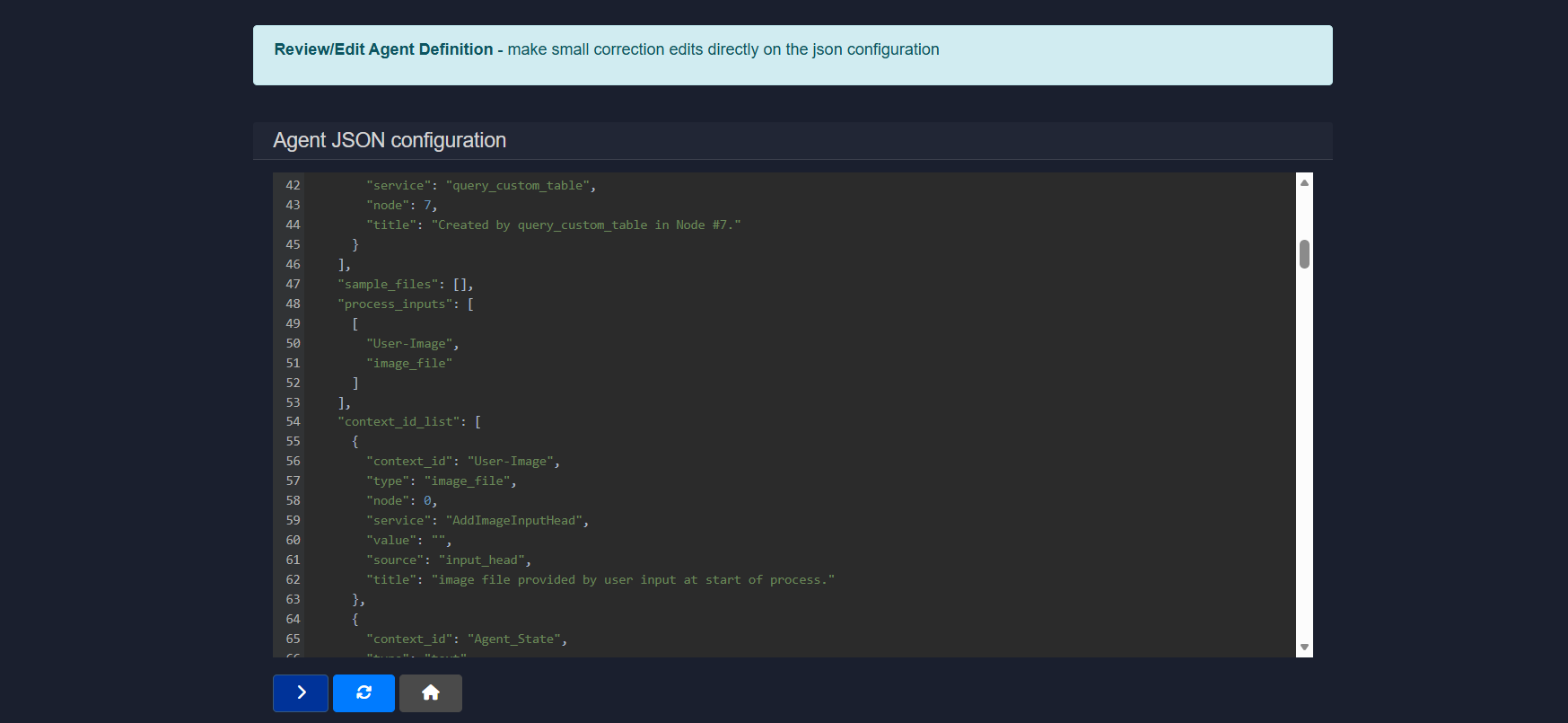
Common sections include:
service– service assigned to each nodenode– execution orderprocess_inputs– required user inputscontext_id_list– data passed between stepssample_files– example inputs- configuration metadata
Changes made in this editor directly update the agent configuration.
3. Editing an agent (with visual builder)
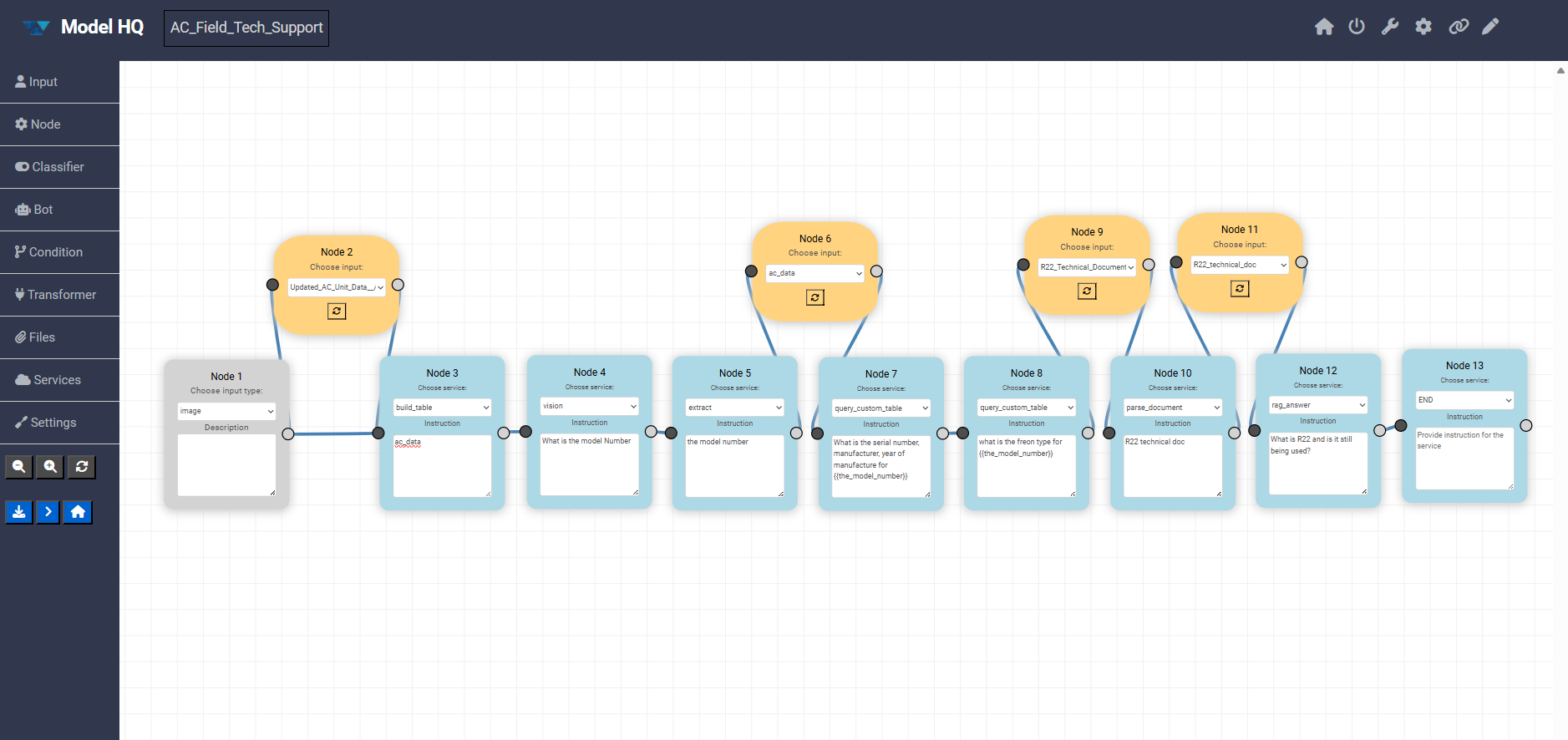
The Visual Builder allows agents to be edited using a point-and-click, drag-and-drop interface. This makes it easy to understand, modify, and extend agent logic without writing code.
Note: The number displayed on each node represents the order in which they were placed on the canvas by the user only. The number does not indicate the order in which the nodes will run. The sequence of agent action is determined by the connectors between each node in the process, and not the number on the node.
3.1 Builder overview
The canvas represents the full execution flow of an agent, from input to final output. Each block is a node, and connections define how data moves between steps.
Up to Transformers, all components are fully visual and configurable directly in the builder. The remaining options are covered in detail in the dedicated Visual Builder documentation.
3.2 Left panel (node types)
The left sidebar contains the core building blocks that can be dragged onto the canvas:
- Input Defines how data enters the agent (for example text, image, or file input).
- Node General-purpose processing steps that pass data forward.
- Classifier Routes execution based on intent or classification logic.
- Bot Handles LLM-powered reasoning or responses.
- Condition Adds branching logic based on rules or outputs.
- Transformer Transforms or enriches data before it moves to the next step.
3.3 Canvas controls
On the canvas, the following actions can be performed:
- Nodes can be dragged to reposition them
- Nodes can be connected to define execution flow
- Nodes can be selected to edit their instructions and configuration
3.4 Zoom and utility actions
The bottom-left controls allow the following operations:
- Zoom in
- Zoom out
- Clear the canvas
3.5 Action buttons
Below the utility buttons, quick access to key actions is provided:
- Download Agent Downloads the agent definition as a JSON file. This file can later be uploaded to instantly recreate the agent.
- Run Executes the agent with the current configuration.
- Home Returns to the main dashboard.
Additional information about the Visual Builder can be found in the Agent Visual Builder Mode documentation.
Conclusion
This document provided comprehensive guidance on editing agents in Model HQ using both the step-based editor and the Visual Builder interface. The Edit Agent functionality enables existing workflows to be refined, extended, and optimized by modifying services, adjusting execution order, configuring inputs and outputs, and applying safety controls. The step-based editor offers precise control over linear agent workflows through a structured interface where services, instructions, and contexts can be configured for each execution step. The Visual Builder provides an intuitive drag-and-drop canvas for visualizing complex workflows, making structural changes, and understanding data flow through node-and-wire representations.
Key editing capabilities include configuring input types (text, documents, images, tables, sources), managing files and assets, executing test runs for validation, defining metadata and presentation elements, controlling output formats, generating structured reports for different audiences, and applying automated safety controls such as pattern redaction and content classification. The Services catalog determines which capabilities are available within the agent, ranging from core services like chat and RAG to specialized utilities for web scraping, image generation, and email automation. Advanced features such as the Plan section enable natural language descriptions to be used for workflow generation, while the JSON Editor provides direct access to the underlying agent configuration for precise modifications.
For further assistance or to share feedback, please contact us at support@aibloks.com